 MergenHub
MergenHub Mobile is the iOS and Android app for MergenHub. It works in two modes: in server mode it connects to the MergenHub server at the plant to watch live values, write values, acknowledge alarms and open SCADA screens; in phone mode it needs no server — the drivers run on the phone itself and talk to PLCs and RTUs directly. The app needs no extra licence: in server mode the server's licence applies, phone mode is free.
Installing
The app is published on the App Store and Google Play as MergenHub; store links are on the MergenHub Mobile page.
Permissions the app may ask for:
- Local network (iOS) — to reach PLCs on the same network in phone mode.
- Notifications — to receive alarm notifications in server mode.
- Camera — only when scanning a QR code.
- Face ID / fingerprint — only if you turn on the app lock or authentication before writes.
The app sends no personal data to Envest and contains no ads or tracking.
The two modes
| Server mode | Phone mode | |
|---|---|---|
| Where data comes from | MergenHub server (REST API) | The project on the phone and drivers running on the phone |
| When it runs | 24/7 on the server; the phone is only a window | Only while the app is open |
| Logging, alarms, notifications | Continuous on the server; push notifications to the phone | While the app is open; no notifications |
| Screens | SCADA screens designed in the web interface | Screens designed on the phone |
| Permissions | Same as your user on the server | The phone's owner can do everything |
| Licence | The server's licence | Not required |
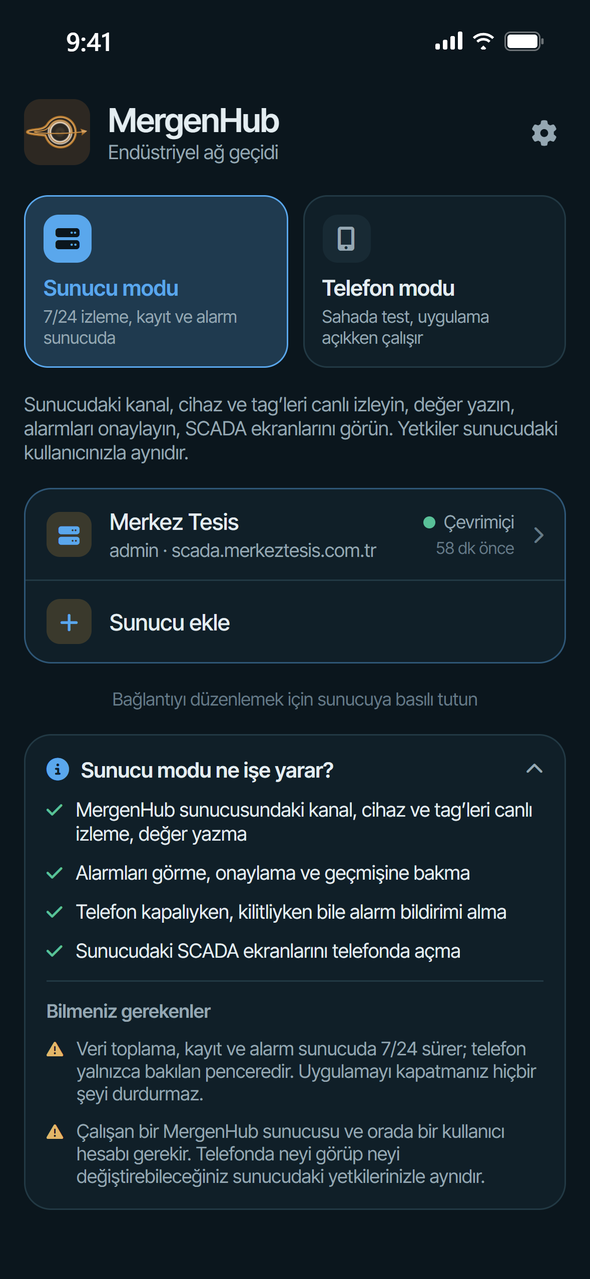
You choose the mode with the two large buttons on the home screen (Sunucu modu, Telefon modu); the choice is remembered. Server mode is shown in blue, phone mode in brass. Inside a workspace the header shows the mode (SUNUCU MODU / TELEFON MODU), the user and the tab; tapping the header returns to the home screen.
Server mode
Preparing the server
On the server (in the web interface, as an administrator):
- Network access — under Settings › Web, REST API & Mobil the Host must not be
localhost. For the local network enter0.0.0.0and restart the MergenHub service. The firewall rule added by the installer opens port 8090. See Publishing on a domain and Windows Firewall and ports. - Mobile access — on the same tab, in the Mobile app (iOS / Android) card, Allow sign-in from the mobile app must be on. When it is off, new sign-ins and open mobile sessions are rejected. Session lifetime (days) sets how long a phone stays signed in without asking for the password again (default 90).
- Per-user access — in the Mobile access per user table the user's Mobile sign-in box must be ticked. A user with mobile sign-in disabled cannot connect from the app; web access is unaffected.
- Access over the internet — publish the server on a domain with HTTPS. Use HTTP only on a trusted local network; over HTTP the password and data travel unencrypted.
Adding a server and signing in
- On the home screen choose Sunucu modu (Server mode) and tap Sunucu ekle (Add server).
- In Adres (Address) enter an IP address or a domain. With an IP address the server's port 8090 is tried; with a domain HTTPS is tried first. You can also type the scheme (
http://orhttps://) and port yourself. - Optionally give a Görünen ad (Display name), for example "North pump station".
- Enter Kullanıcı adı (User name) and Parola (Password) — your account in the web interface.
- Bağlantıyı dene (Test connection) shows the server's name, tag count, status and whether the connection is HTTPS or HTTP. Kaydet (Save) signs in.
If the server can only be reached over HTTP, the app shows an unencrypted connection (HTTP) warning and asks you to confirm. If the account must change its password at first sign-in, a new-password screen appears when you open the server.
You sign in once: the server issues a session token for this phone and the password is not stored on the phone. The token is kept in the phone's encrypted store (Keychain / Keystore).
The server list on the home screen checks each server every ten seconds (Çevrimiçi online / Erişilemiyor unreachable). Long-press a server to change its address, display name or user; Sunucuyu kaldır (Remove server) also closes the device session on the server. You can add several servers and switch between them from the home screen.
Permissions
What you can do in the app depends on your permissions and the resource access lists (ACL) on the server; channels and devices you cannot access are not shown.
| Action | Permission |
|---|---|
| Tree, live values, device status | any role (Viewer) |
| Event log | ConfigRead |
| Add / edit / delete channels, devices, groups, tags; Add device wizard | ConfigWrite |
| Write values, buttons and switches | RuntimeControl |
| See and acknowledge alarms, alarm notifications | Alarms |
| Trend history (Data Logger) | DataLogging |
| SCADA screens | Scada |
| Enter a licence key | Settings |
| AI assistant | Ai |
Overview (Genel)
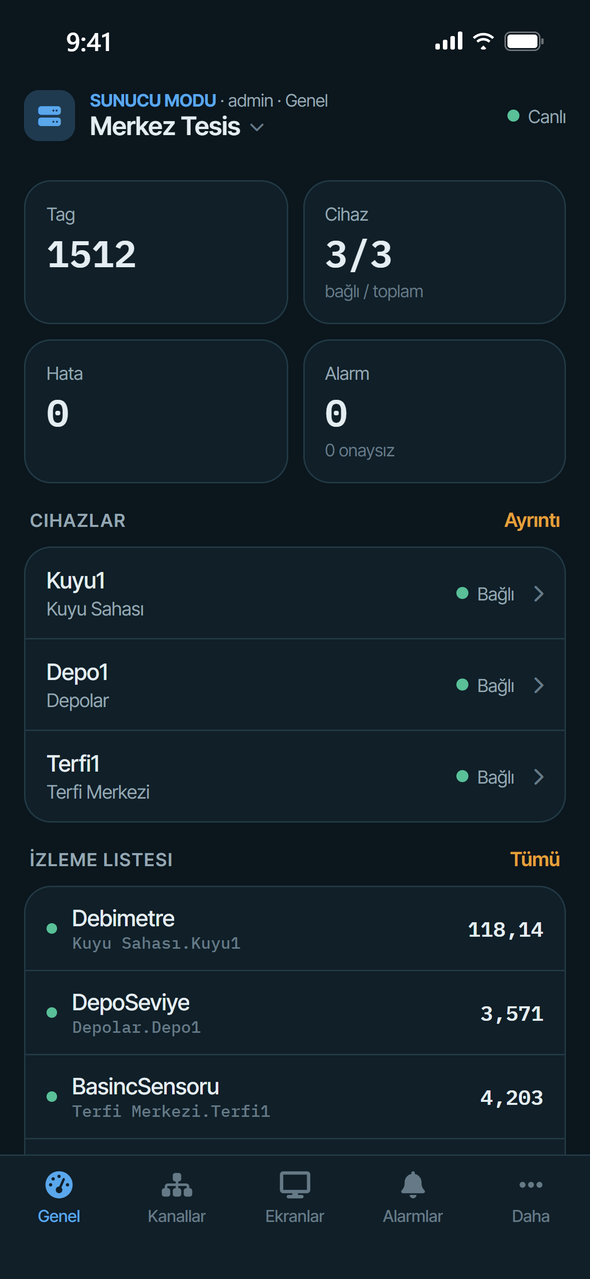
The first page after connecting:
- Tiles — tag count, connected / total devices, devices with errors, active and unacknowledged alarms.
- Aktif alarmlar (Active alarms) — the three newest; Tümü (All) opens the Alarms tab.
- Cihazlar (Devices) — the state of each device: Bağlı (connected), Hatalı (error), Bağlı değil (not connected) or Kapalı (disabled); the last error is shown under the row. Ayrıntı (Details) opens Device status with read/write counters.
- İzleme listesi (Watch list) — tags you look at often. Add a tag with the star in its detail page; the list is kept per server.
The green Canlı (Live) dot in the header means values are flowing; if the connection drops it shows Bağlantı yok (No connection). Values refresh once a second by default (Settings › Server mode).
Channels, devices and tags (Kanallar)

The Kanallar tab is the project tree of the web interface: channels, their devices, each device's tag count and a status dot. Tap a device to open its page.
With the ConfigWrite permission:
- Tap a channel name: Cihaz ekle (Add device), Kanal ayarları (Channel settings), Kanalı kopyala (Copy channel), Kanalı sil (Delete channel).
- Tap a device's ⋯ button or long-press it: Tag'leri aç (Open tags), Tag ekle (Add tag), Cihaz ayarları (Device settings), Cihazı kopyala (Copy device), Cihazı sil (Delete device).
- The Cihaz ekle button at the top opens the Add device wizard.
Saving channel or device settings restarts that channel; communication may pause for a few seconds. Fields and setting keys are the same as in the web interface; see Channels, devices and tags.
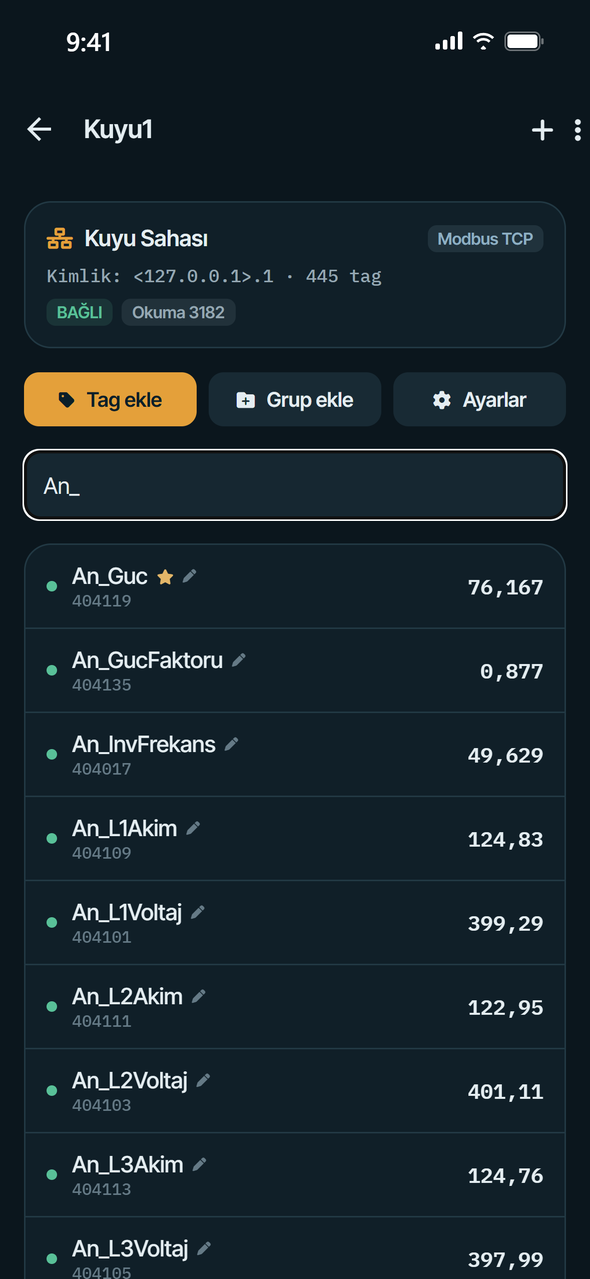
The device page lists the device's tags and groups with live values, with read, error and write counters and a search box at the top. With the right permission you add tags and groups and open the device settings here.
The tag detail page opens when you tap a tag:
- Value, quality (Good, Uncertain, Bad) and timestamp.
- Değer yaz (Write value) — AÇIK / KAPALI (ON / OFF) buttons for Boolean tags, a value field and Yaz (Write) for the rest. Only shown for writable tags and with the RuntimeControl permission.
- Trend — 5 min, 15 min, 1 h, 6 h or 24 h. History comes from the Data Logger (DataLogging permission); samples collected while the page is open are added.
- Address, data type, access, scan rate, scaling and description.
- The star at the top right adds the tag to the watch list; the menu has Düzenle (Edit), Kopyala (Copy), Sil (Delete).
Screens (Ekranlar)
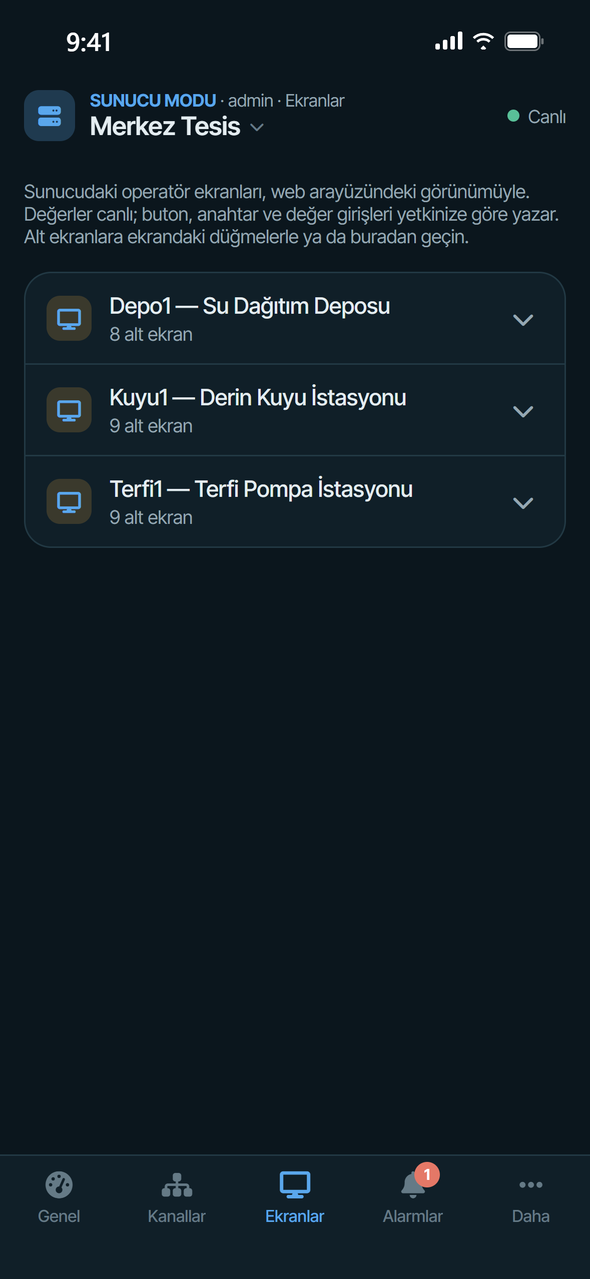
The Ekranlar tab lists the server's SCADA screens as in the web interface: main screens at the top, sub-screens (settings screens and so on) in a branch opened with the arrow. The tab needs the Scada permission.
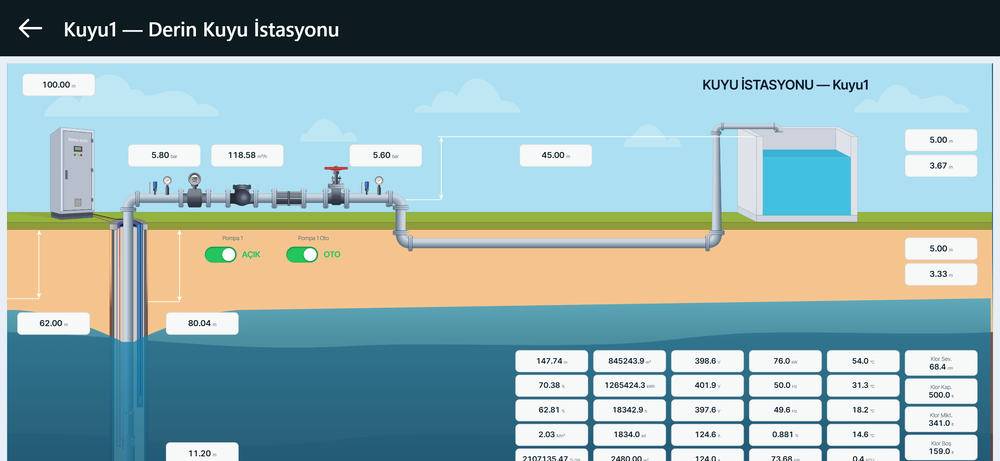
Tapping a screen opens it in the server's own viewer, in operator (run) view: symbols, flow animations, 3D backdrops and sub-screen buttons look exactly as in the web interface. Values are live; buttons, switches and value inputs write according to your permissions.
Wide station screens are fitted to the width of a phone held upright. The phone icon at the top right turns the screen to landscape; pinch to zoom and drag with one finger to pan. On tablets and in landscape the view stays the operator view; screens are designed only in the web interface.
Screens are designed in the web interface (SCADA / HMI); they are not edited on the phone in server mode. On MergenHub 3.5.0 and older servers screens are drawn in a simplified way: macros, SVG symbol library objects and maps appear as faded boxes.
Alarms (Alarmlar)
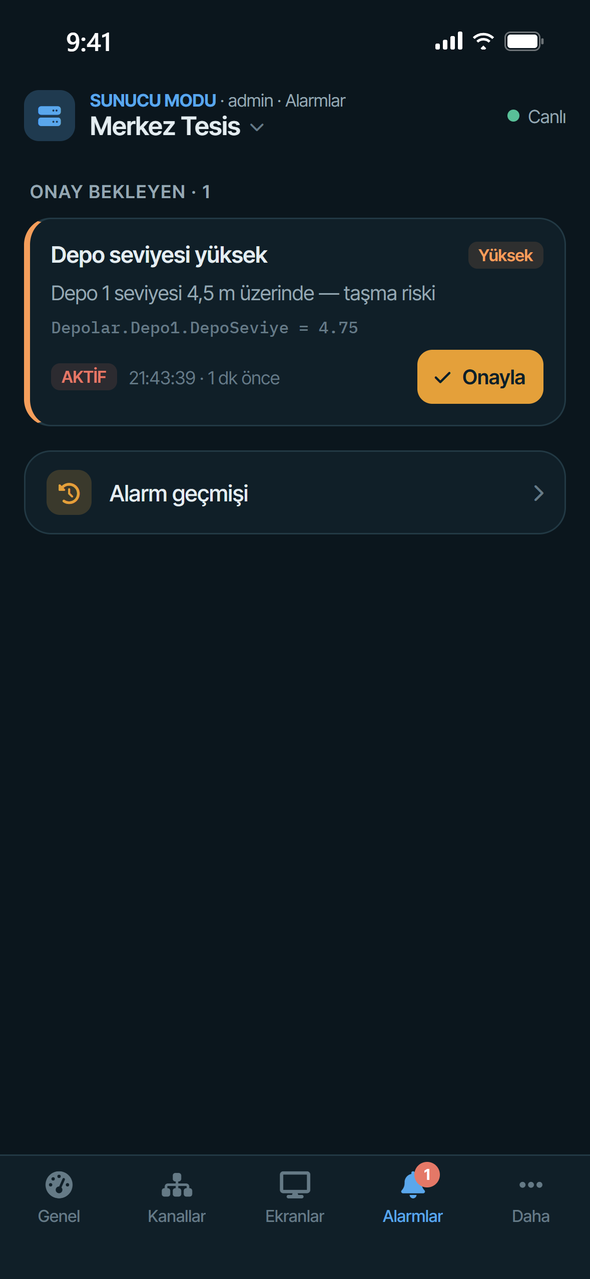
The red number on the tab icon is the number of unacknowledged alarms. Alarms are listed in two groups: Onay bekleyen (Awaiting acknowledgement) and Onaylanmış, aktif (Acknowledged, active). Each card shows:
- The alarm name and severity: Kritik (critical, 800 and above), Yüksek (high, 600–799), Orta (medium, 400–599), Düşük (low).
- The message, the tag path and its current value — tap the tag line to open the tag detail.
- AKTİF (active) or NORMALE DÖNDÜ (returned to normal), the time it was raised and who acknowledged it.
- The Onayla (Acknowledge) button. The acknowledgement is written to the server's audit log with your user and the source Mobile.
Alarm geçmişi (Alarm history) lists alarm events (raised, returned to normal, acknowledged) with time, tag value and user. Alarm definitions are managed in the web interface; see Alarms and notifications.
More (Daha)
In server mode the Daha tab contains:
- Tag ara (Search tags) — by name, path or address across the server.
- Cihaz durumu (Device status) — connection, read/write and error counters per device.
- Olay günlüğü (Event log) — the server's event log (ConfigRead permission).
- AI asistanı (AI assistant) — only shown with the Ai permission; see below.
- Cihaz ekle / kütüphane (Add device / library) — with the ConfigWrite permission; see Add device wizard.
- Sunucu kaynakları (Server resources) — CPU, memory, disk, MergenHub's own memory, tag and scanned-tag counts, OPC clients, monitored items, threads and handles, and the state of the services; refreshed every five seconds.
- Cihazlarım ve bildirimler (My devices and notifications) — your open mobile sessions and this phone's notification registration.
- Sunucu lisansı (Server licence) — customer, key, tag limit, validity, maintenance date and machine fingerprint. A user with the Settings permission can enter and activate a licence key here.
- Sunucu bağlantısını düzenle (Edit server connection) and Bu sunucunun projesini telefona al (Copy this server's project to the phone).
- Ayarlar (Settings) and Çalışma alanını değiştir (Switch workspace — back to the home screen).

Sessions. Cihazlarım ve bildirimler lists your user's open sessions (device name, platform, app version, last seen, IP); the phone you are using is marked BU CİHAZ (this device). End the session of a lost phone here with Kapat (Close). Bu cihazda oturumu kapat (Sign out on this device) removes the server from the list; you need the password to connect again.
AI assistant. If the in-app AI assistant is enabled on the server and has an active provider, you can chat with it from the phone and choose among the enabled providers and models. When the assistant asks for confirmation or permission to run an action, approve and Reddet (Reject) buttons appear under the message. Assistant settings live in the web interface; see In-app AI assistant.
“Sunucuda” (on the server) confirmations
A change you make in server mode does not happen on the phone — it happens on the server and affects everyone who uses it. The confirmation dialog says so explicitly: its title starts with Sunucuda: (On the server:) and the text names the server where the action will run and states that it affects everyone using the server and the live system.
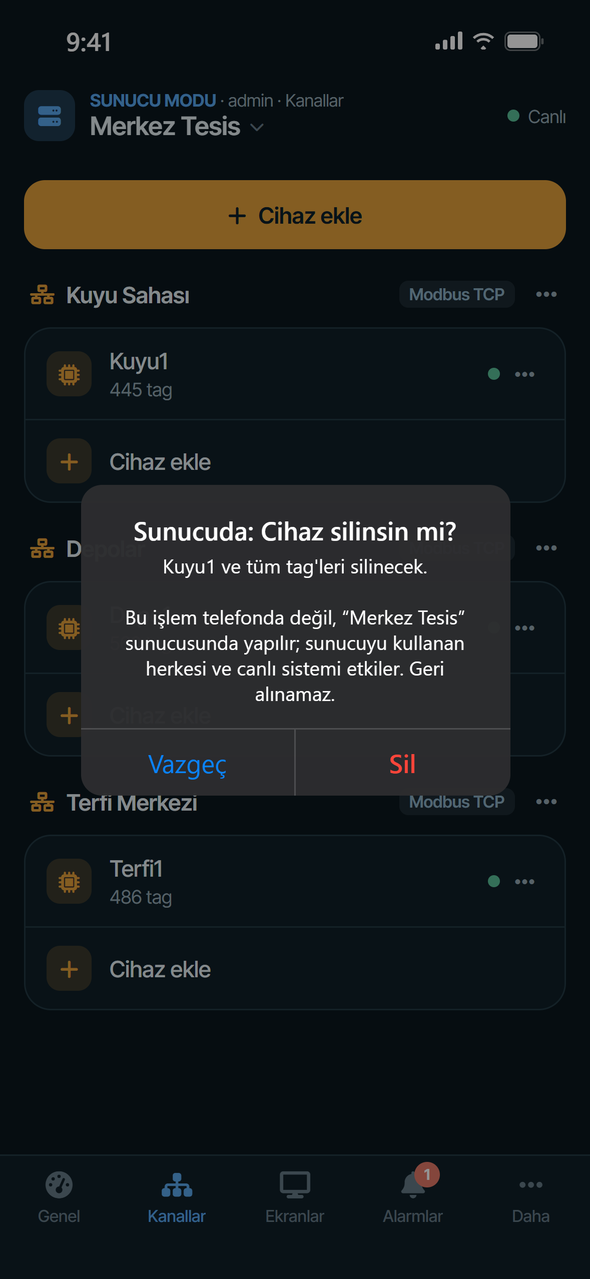
The dialog appears for:
- Deleting a channel, device, group or tag — "Geri alınamaz." (Cannot be undone.) is added.
- Creating and saving changes to a channel, device or tag; creating and renaming a group. For channels and devices it also says that the channel will restart.
- Copying a channel, device or tag — the copy starts scanning on the server right away.
- In phone mode, Proje › Sunucuya gönder (send to server) — it says on which server how many devices and tags will be created.
- Installing in the Add device wizard — the devices to install and what will be created on the server (channel, device, tags, calculated tags, screens) are listed.
- Writing a value from the tag detail page, when Yazmadan önce onay iste (Ask before writing) is on.
In phone mode the same actions ask for a plain confirmation, without "Sunucuda".
Push notifications
When an alarm is raised the server sends a notification to the phone through the Expo Push service; it arrives even when the phone is locked. All of the following are needed:
- The server runs MergenHub 3.5 or later and the phone is connected with a device session.
- Allow sign-in from the mobile app is on (Settings › Web, REST API & Mobil).
- Send mobile push notifications is on (Settings › Mobile push).
- Receive push is ticked for the user (Settings › Mobile push › Push per user).
- The user has the Alarms permission and access to the alarm's tag.
- Mobile push is selected among the notification channels of the alarm definition (on by default).
- The server has outbound HTTPS to the internet (
exp.host, port 443). The phone does not need to reach the server; the notification arrives via Expo. - Notifications for MergenHub are allowed on the phone.
The app shows the phone's registration under Daha › Cihazlarım ve bildirimler ("Bu cihaz alarm bildirimlerine kayıtlı" — this device is registered — or the reason it could not register); Yeniden kaydet (Register again) repeats it. On Settings › Mobile push administrators see which devices receive push, and can send a test notification or an announcement.
There are no notifications in phone mode.
Phone mode
In phone mode the project is kept on the phone and the drivers run on the phone; no server or licence is needed. It is designed for commissioning, address checking and testing in the field.
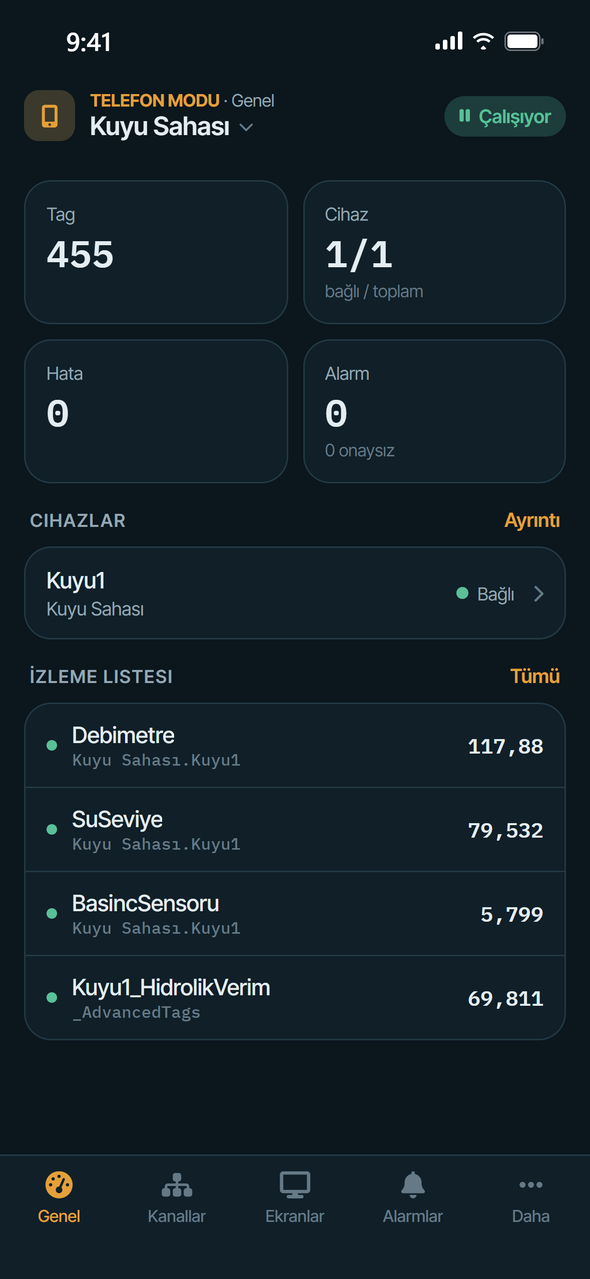
- On the home screen choose Telefon modu (Phone mode) and tap Projeye başla (Start project) — or Projeyi aç (Open project) if a project exists.
- Use Cihaz ekle (Add device) to pick a ready-made device from the library or create a channel by hand.
- The Durdu / Çalışıyor (Stopped / Running) button at the right of the header starts and stops scanning. Once scanning starts the drivers connect and values flow.
Drivers
All of MergenHub's field drivers and the simulator run on the phone. Driver names, device ID formats, address syntax and setting keys are the same as on the server, so a project moves between server and phone unchanged. Daha › Desteklenen protokoller (Supported protocols) shows each driver's address formats with examples.
| Driver | Notes |
|---|---|
| Simulator | Sine, ramp, square wave, random, counter, writable register |
| Modbus TCP/IP Ethernet | Holding/input registers, coils, discrete inputs, register bits, strings |
| Modbus RTU Serial / Modbus ASCII Serial | Through a serial server or gateway (Ethernet encapsulation) |
| Siemens S7 TCP/IP | S7-200/300/400/1200/1500, DB, M, I, Q areas |
| OMRON FINS Ethernet | FINS/TCP on the phone; a device set to UDP connects over TCP |
| OMRON NJ Ethernet | NJ/NX, EtherNet/IP CIP symbolic variables |
| MQTT Client | MQTT 3.1.1 over TCP or WebSocket; JSON, CSV, XML, binary, regex extraction |
| DNP Client Ethernet | Integrity and Class 1/2/3 polls, CROB and analog output |
| IEC 60870-5-104 Client | General interrogation, spontaneous events, commands |
| IEC 61850 MMS Client | Read, write and control (Oper) |
| OPC UA Client | Unsecured (None) endpoints only; anonymous or user name |
The phone must be on the same network (Wi-Fi) as the devices. The store version includes raw TCP support: under Settings › İstemci modu (Client mode) the Ham TCP (Raw TCP) badge shows NATIVE and nothing else is needed. The TCP köprüsü (TCP bridge) field in the same section is only for development builds; leave it empty in the store app.
Editing channels, devices and tags
The Kanallar tab and its menus are the same as in server mode. Specific to phone mode:
- A new channel asks for a driver; after it is created the first device is added straight away.
- On a new device, Örnek tag'ler ekle (Add example tags) adds the driver's sample tags.
- The tag form: name, address, data type, Yazılabilir (Writable), scan rate, Açıklama / birim (Description / unit — shown as a unit if 6 characters or fewer, e.g.
bar,m³/h) and Ölçekleme (Scaling: raw and scaled low/high, clamping, negation). Kaydedince yenisini ekle (Add another after saving) speeds up entering many tags. - The device menu has Şablon olarak kaydet / paylaş (Save / share as template); see Templates and sharing.
Writes to scaled tags apply the scaling in reverse.
Alarms and calculated tags
Alarm tanımları (Alarm definitions — Daha › Alarm tanımları or the bottom of the Alarms tab) defines alarms on the phone:
- Condition — very high, high, low, very low, deviation +/−, rate of rise, rate of fall.
- Limit — plus a setpoint for deviation alarms; for rate alarms the limit is units per second.
- Deadband — none, absolute or percent (with range low/high), plus on and off delay (s).
- Severity (low, medium, high, critical), message, area, enabled.
Gelişmiş tag'ler (Advanced tags — Daha › Gelişmiş tag'ler) are tags calculated from other tags; their path is _AdvancedTags.<name>:
- Expression —
{Channel.Device.Tag}references, arithmetic, comparisons and functions such asROUND,MIN,MAX,IF,POLY. The function list is the same as on the server; see Advanced (virtual) tags and Creating device templates. - Totalizer — sums value × seconds (for an m³/h input divide the result by 3600).
- Average, Maximum, Minimum — over the last sample count values of the source tag.
Screens and the screen editor
In phone mode the Ekranlar tab lists this project's operator screens. Tap a screen to run it; Düzenle (Edit) opens the editor; the menu has Çalıştır (Run), Düzenle, Kopyala (Copy) and Sil (Delete). Ekran ekle (Add screen) opens a new screen as a draft; it is added to the project only when you tap Kaydet (Save).
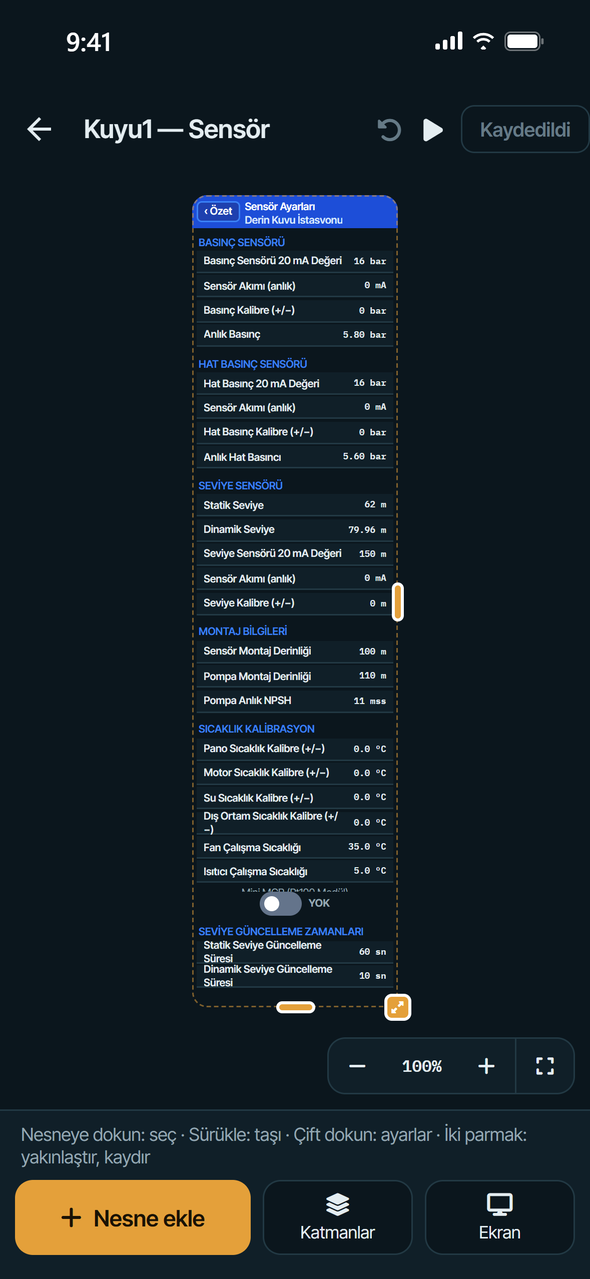
In the editor:
- The Nesne ekle (Add object) palette: value display, lamp, button, switch, value input, setting row, gauge, tank and level bar, pump, valve, motor, fan, pipe, text, panel, image and more than 260 industrial symbols.
- Tap an object and drag it; alignment guides appear. Corner and edge handles resize it freely, the round handle on top rotates it. On empty space one finger pans and two fingers zoom.
- For the selected object: tag binding, label, unit, decimals, colours; Durum (State — when the object counts as "on"), Kumanda (Control — on/off values), Seviye (dolum) (Level fill — minimum and maximum); Koşullu kurallar (Conditional rules: change colour, blink, hide; conditions
>,≥,=,≠,<,≤or between); Dokununca (On tap) — go to another screen. - Katmanlar (Layers), Öne / Arkaya (Bring forward / Send backward), Çoğalt (Duplicate), Sil (Delete) and undo.
- Ekran ayarları (Screen settings): name, size (phone portrait 400×700, phone tall, phone landscape, tablet, wide screen) and background colour.
Screens are stored in the same structure as the server's SCADA screens; when a project moves to the server as a package, its screens go too.
Summary and tabs for library devices
A device installed from the Device Library in phone mode comes with a screen set made for the phone: a portrait Özet (Summary) screen with measurements, controls and buttons for the settings screens, plus single-column settings screens.
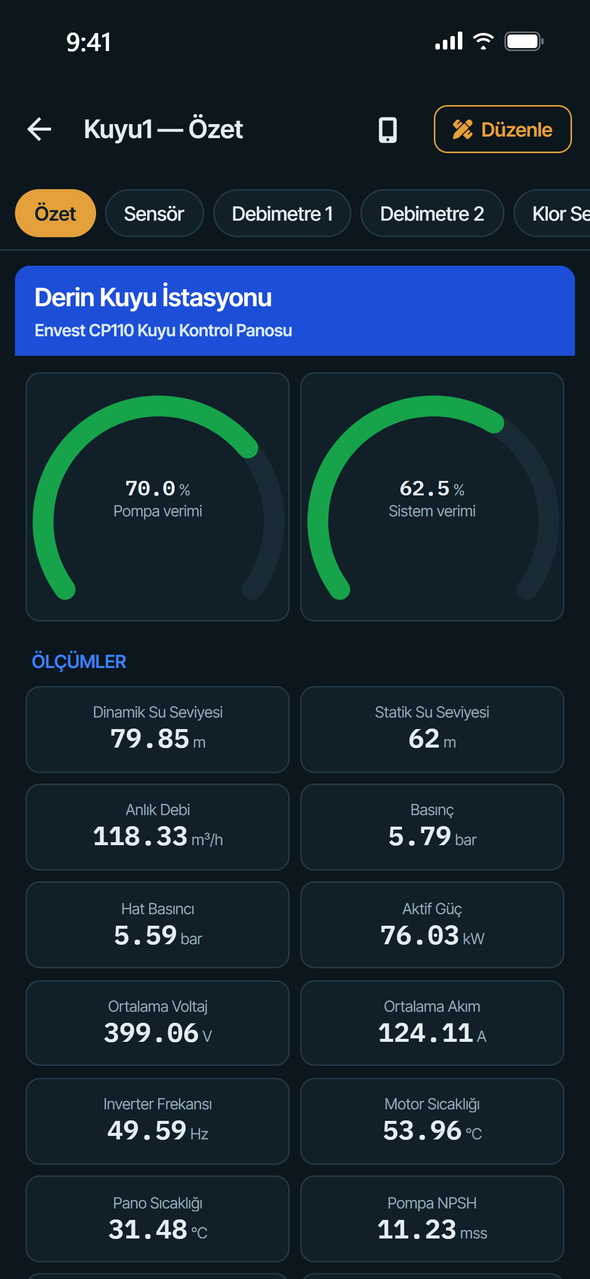
When the Summary is open a tab strip appears at the top: Özet and the device's settings screens (for example sensor, PID, communication). Tap a tab, or a settings button on the Summary, to switch.

On setting rows tap the value to write a new one; depending on your settings the write asks for confirmation and authentication.
Moving a project between phone and server
From the phone to the server:
- Daha › Proje › Sunucuya gönder (Send to server) — pick a saved server and a channel; the channel is created on the server as a new channel with its devices and tags. Screens, alarms and advanced tags are not sent this way; a channel with the same name must not exist on the server.
- Create a MergenHub package (
.mhpkg.json) with Proje › Projeyi dışa aktar (Export project) and install it in the web interface with Device Library › Import from file. This also moves screens, alarms and calculated tags. - Proje › Kepware/MergenHub JSON olarak paylaş (Share as Kepware/MergenHub JSON) — the classic project JSON, loaded in the web interface with Project › Import (channels, devices and tags only).
From the server to the phone: in phone mode Daha › Sunucudan proje al (Get project from server), or in server mode Daha › Bu sunucunun projesini telefona al. Select the channels; if Aynı adlı kanalın yerine geç (Replace a channel with the same name) is off, the channel is added under a new name. Channels, devices and tags are copied.
Add device wizard
The wizard works the same way in both modes. In server mode the device is installed on the server (ConfigWrite permission required); in phone mode into the phone's project. Open it with the Cihaz ekle button on the Kanallar tab, the Cihaz ekle card of an empty project or Daha › Cihaz ekle / kütüphane.
Choosing a source
- Cihaz kütüphanesi (Device Library) — device packages prepared and tested by Envest, by brand, model and firmware version, with tag list, calculated tags and screens. You can select several devices.
- Telefondaki şablonlarım (My templates on this phone) — templates you saved or received.
- Dosya, pano, QR ya da adres (File, clipboard, QR or address) — a MergenHub package from a file, pasted from the clipboard (for example text from an AI assistant), from a QR code or from an
https://…/device.mhpkg.jsonaddress. - Elle oluştur (Create manually) — choose the driver and define the channel and device yourself; add tags later.
Choosing from the library

The library list is downloaded from the website. The search box searches brand, model, firmware version and protocol; the category buttons narrow the list. Each card shows the protocol, tag count and the number of screens that will be installed. The box on the right of a card adds the device to the selection; Seçilenleri kur (Install selected) installs them all together.
Without internet the last downloaded list is shown ("Çevrimdışı", offline); installing needs internet to download the package. In server mode the phone downloads the package and installs it on the server, so the server itself needs no internet access.
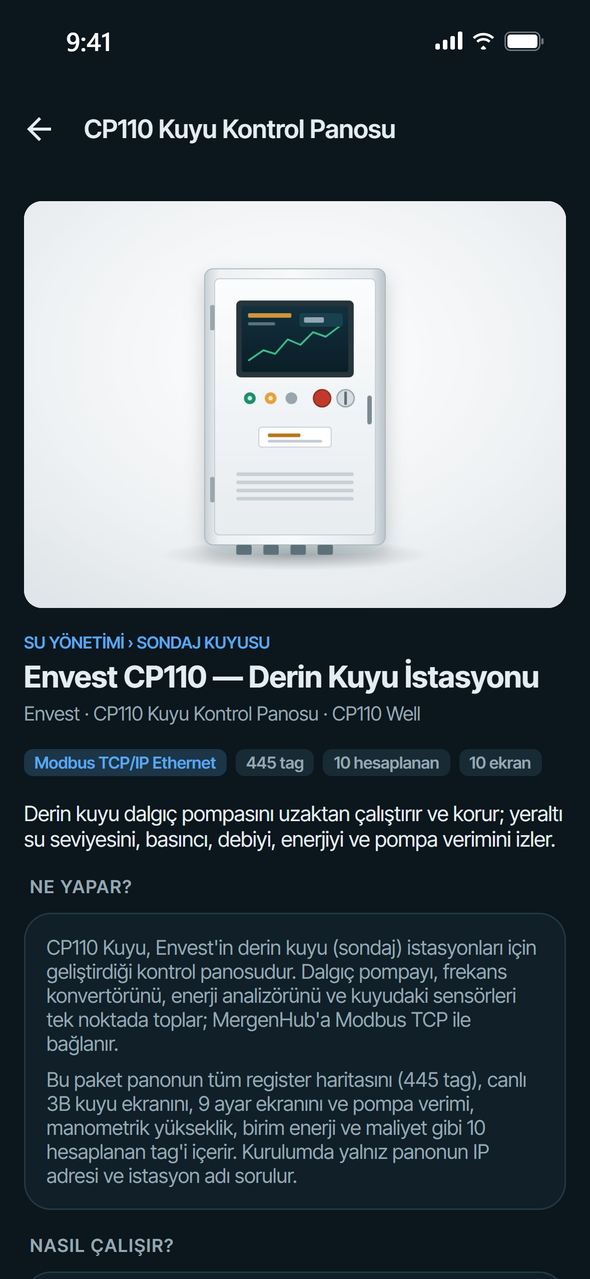
Tap a card for details: photo, category, Ne yapar? (What it does), Nasıl çalışır? (How it works), Paketin içeriği (Package contents), Kurulumda sorulanlar (Asked at installation) and the product page. Bu cihazı kur (Install this device) installs only this one; Seçime ekle (Add to selection) is for installing several.
If your device is not there, the Ekleme isteği gönderin (Request it) link under the list opens the customer panel on the website; see Creating device templates.
Installation details
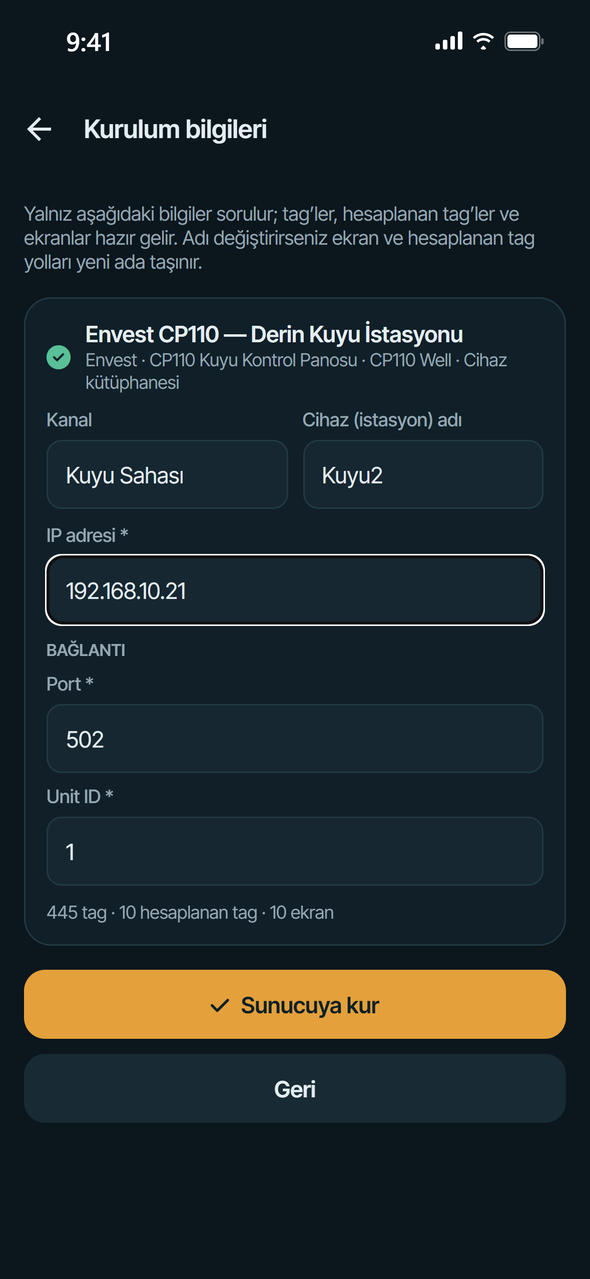
For each device only the package's questions are asked; tags, calculated tags and screens come ready:
- Kanal (Channel) and Cihaz (istasyon) adı (Device / station name) — the names in the package are suggested; if a name is taken the first free number is used (Well1 → Well2). When you change the name, tag paths on screens, alarms, calculated tag names and expressions, and the station name in screen names move to the new name.
- Package parameters — IP address, port, unit ID, FINS nodes or station parameters; fields marked
*are required.
Under each card the app shows what will be installed (tags, calculated tags, screens, alarms) or the problems to fix. Installation is enabled only when no problem remains. Checked:
- A required parameter is empty or a placeholder is not filled (such as
{{ip}}). - The channel name is used on the server (or in the project) with another driver — choose another channel name. If it is used with the same driver, the device is added to that channel.
- A device with the same name exists in the channel, or two devices in the list have the same name.
- A calculated tag name already exists. Calculated tag names are unique across the server (or project); in library packages they start with the device name, so a different device name resolves the clash.
- The package's addresses and driver settings are validated against the driver.
Sunucuya kur (Install on server — Projeye kur, Install into project, in phone mode) starts the installation; in server mode the Sunucuda: confirmation comes first and lists the devices to be installed.

Installation and result

In server mode the order is: channel (created if missing), the device with all its tags, calculated tags, runtime reload, alarms, screens. Devices with hundreds of tags take a few seconds; stay on the page. The result card shows, per device, the number of tags, calculated tags, screens and alarms installed, and any parts that could not be installed. Ekranı aç (Open screen) opens the installed main screen.
A package may carry two screen sets. On the server the server set is installed: one main screen with the settings screens under it. On the phone the phone set is installed: the Summary and its settings screens as tabs. Screen IDs are renewed at installation; installing the same package again does not overwrite existing screens.
Templates and sharing
Define a device once (tags, descriptions, screens, alarms), keep it as a template and later install it into other projects by entering only its IP address — or share it. Templates and packages use the same format (.mhpkg.json); see Creating device templates.
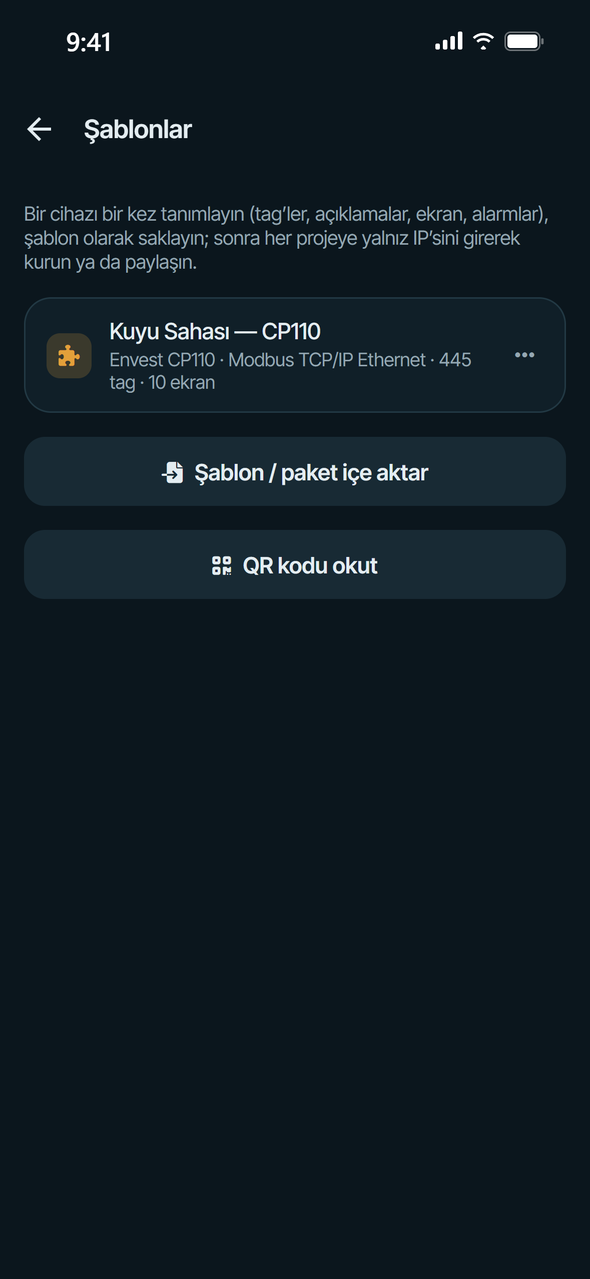
Saving a template (phone mode): on the Kanallar tab open the device's ⋯ menu and choose Şablon olarak kaydet / paylaş. Enter Ad (Name), Açıklama (Description), Üretici (Vendor), Model and Hazırlayan (Author); with Ekranları da al (Include screens) on, screens bound to this device go into the package. IP addresses in the device ID and settings are turned into the {{ip}} parameter automatically. Then:
- Dosya olarak paylaş (Share as file) — through the phone's share sheet (e-mail, messaging, files).
- Panoya kopyala (Copy to clipboard) — as text; handy for giving to an AI assistant.
- Şablonlarıma kaydet (Save to my templates) — into the template list on the phone.
To package the whole project use Daha › Proje › Projeyi dışa aktar.
The templates page (in phone mode, Daha › Şablonlar ve paketler): tap a template to install it; its menu has Projeye kur (Install into project), Dosya olarak paylaş, Panoya kopyala, Sil. Şablon / paket içe aktar (Import template / package) takes a package from a file, the clipboard, a QR code or an address; for project packages choose Projeye ekle (Add to project — devices with the same name are updated) or Projeyi bununla değiştir (Replace the project).
Sharing by QR code. The app scans QR codes but does not create them. Put the package at a reachable address and make a QR code for that address with any QR generator. QR contents the app understands: the package's https:// address, mergenhub://paket?url=<address>, or — for small packages — the JSON text itself.
Settings and security
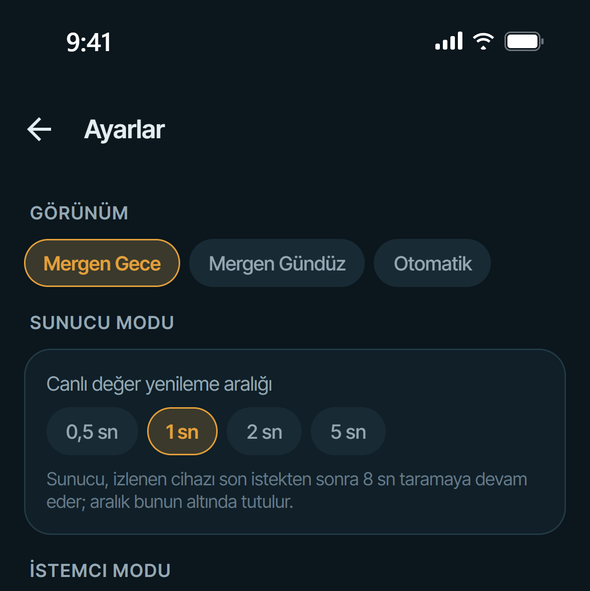
Ayarlar (Settings — the gear on the home screen or Daha › Ayarlar):
- Görünüm (Appearance) — Mergen Gece (night), Mergen Gündüz (day) or Otomatik (follows the phone).
- Sunucu modu › Canlı değer yenileme aralığı (Live value refresh interval) — 0.5 / 1 / 2 / 5 s. The server keeps scanning a watched device for 8 s after the last request, so the interval stays below that.
- İstemci modu (Client mode) — raw TCP status and the TCP bridge for development builds.
- Güvenlik › Uygulama kilidi (Security › App lock) — asks for Face ID, Touch ID, fingerprint or the phone passcode when the app opens and after it has been in the background for a while. Re-lock after: immediately, 1, 5 or 15 minutes.
- Güvenlik › Değer yazarken doğrula (Authenticate when writing) — asks for authentication before writing a value or sending a command to a device.
- Tarama sürerken ekranı açık tut (Keep the screen on while scanning) — so scanning does not stop in phone mode.
- Yazmadan önce onay iste (Ask before writing) — on by default; a confirmation showing the value before every write.
When you turn on one of the security settings the app authenticates you once; if the phone has no screen lock the setting stays off.
Security principles:
- The password is not stored on the phone. The phone keeps only the session token the server issued for that device, in the encrypted store.
- Administrators see every session. Settings › Web, REST API & Mobil shows active users (web, mobile, API), mobile device sessions and per-user mobile access; a lost phone's session is closed with one click, or the user's mobile access is turned off. Web access is not affected.
- The audit log shows the source of every action; actions from the app appear as Mobile.
- The app cannot change the server's mobile settings; they are managed only in the web interface.
- Permissions are the same as on the server; the app never widens them.
Limitations
- Phone mode runs only while the app is in the foreground; it sends no notifications and does not keep alarm history. Trends are limited to the last few hundred samples (at most 1 hour).
- In phone mode OPC UA connects only to unsecured (None) endpoints; MQTT TLS is available only over WebSocket (
wss://); the other TCP drivers have no TLS; OMRON FINS connects over TCP only. - In server mode screens are not edited on the phone; design happens in the web interface.
- Servers older than MergenHub 3.5 have no device sessions, session list, push notifications or String tag writes; on 3.5.0 server screens are drawn in a simplified way.
- The app's user interface is in Turkish.
Troubleshooting
"Sunucuya ulaşılamadı" (server unreachable) or "Erişilemiyor" in the list. Is the phone on the same network as the server? If the server's Host is localhost, only that computer can reach it; set 0.0.0.0 and restart the service. Check that port 8090 is open in the firewall. If http://<server-ip>:8090 opens in the phone's browser, the app can connect too. Bağlantıyı dene lists the addresses it tried and the error for each. Over the internet use a domain and HTTPS.
"Bu sunucuda mobil erişim kapalı" (mobile access is disabled on this server). An administrator must turn on Allow sign-in from the mobile app under Settings › Web, REST API & Mobil. If it affects only one user, that user's Mobile sign-in box is off.
The session dropped and the app asks for the password. An administrator closed the session, turned off the user's mobile access, or the session lifetime expired. Long-press the server and enter the Parola again.
No notifications. Go through the list in Push notifications. The most common causes: notifications not allowed on the phone, no outbound internet from the server to exp.host, Mobile push off in the alarm definition, no access to the tag. The test button on the administrator's Settings › Mobile push page checks the chain end to end.
Values show "Bad" or "—". In server mode the problem is between the device and the server: look at the last error under Daha › Cihaz durumu and open the device's Diagnostics in the web interface (Troubleshooting). In phone mode: is scanning running (Çalışıyor in the header)? Is the phone on the same network as the device? On iOS, does MergenHub have Local Network permission (phone Settings › Privacy & Security › Local Network)? Are the device ID (IP, unit ID, rack/slot) and port right?
A value cannot be written. You need the RuntimeControl permission, the tag must be writable and you need write access to it (ACL). If the write button is missing, one of these is missing.
"SCADA yetkisi yok" on the Screens tab. Your user needs the Scada permission on the server.
A server screen looks simplified. The server runs MergenHub 3.5.0 or older; update to 3.5.1 or later.
The library does not open. The library is downloaded from the internet; offline the last list is shown but nothing can be installed. Download the package from the website and install it with Dosya, pano, QR ya da adres.
"Bu adla hesaplanan tag zaten var" (a calculated tag with this name already exists). The same device package was already installed with the same device name. Choose a different Cihaz (istasyon) adı.
Scanning stops by itself in phone mode. Scanning stops when the app goes to the background or the phone sleeps. Keep Tarama sürerken ekranı açık tut on and leave the app in the foreground.