 MergenHub
 MergenHub runs as Windows services, so it keeps working whether or not anyone is logged in. Publishing it under a domain name means: a DNS record that points to the machine, the right ports reachable through routers and firewalls, and HTTPS so that passwords never travel in clear text. This page covers all three plus the reverse-proxy options.
Decide how the server is reached
| Scenario | What to do |
|---|---|
| Only this PC | Keep the installer defaults (localhost). |
| Office / plant LAN | Set host to 0.0.0.0 (all interfaces); clients use the machine's IP or name; keep the firewall rules the installer added. |
| Internet, own public IP | DNS A record → public IP; forward ports on the router; enable HTTPS; harden users and OPC UA. |
| Internet, behind a reverse proxy | DNS → proxy; proxy terminates HTTPS and forwards to 127.0.0.1:8090; OPC UA port forwarded separately (TCP, not HTTP). |
| VPN only | Recommended for OPC UA and write access from outside; no port forwarding needed. |
1. DNS
Create an A record for the name you want, for example scada.example.com, pointing to the public IP of your internet connection (or of the reverse proxy / cloud VM). If your ISP address changes, use a dynamic-DNS service and keep the record updated.
The installer has a Domain and DNS check page: enter the domain and it tells you whether the name already resolves to this machine's public address.
2. Ports and forwarding
| Traffic | Port (default) | Protocol | Needed for |
|---|---|---|---|
| Web UI + REST API | 8090 or 443 with HTTPS | TCP | Browsers, REST clients, Data Bridge REST server |
| OPC UA | 48010 | TCP | OPC UA clients (SCADA, MES, historian) |
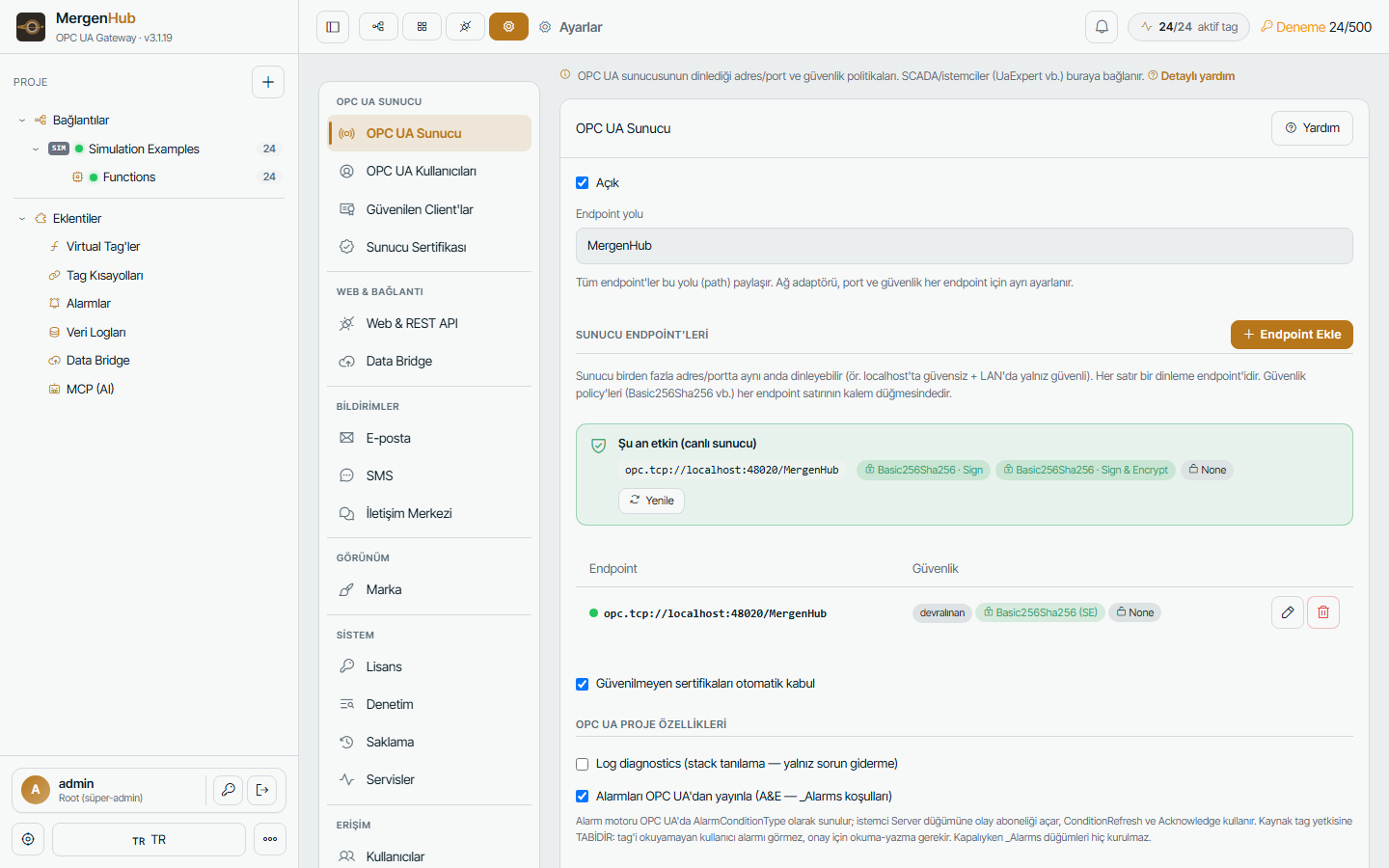
On the router forward the external port to the MergenHub machine's LAN IP. On the machine itself the installer already created Windows Firewall rules; see Windows Firewall and ports. Change the ports in Settings › Web & REST API and Settings › OPC UA Server if you prefer non-default values.
3. HTTPS
You have three options.
a) Self-signed certificate (fastest)
Choose HTTPS – self-signed in the installer, or later run as administrator:
"C:\Program Files\MergenHub\MergenHub.exe" gencert "scada.example.com"This writes C:\ProgramData\MergenHub\webpki\web.pfx. Browsers show a one-time warning because the certificate is not signed by a public authority; fine for internal use.
b) Your own certificate (PFX)
Copy the PFX to C:\ProgramData\MergenHub\webpki\web.pfx and its password to web.pfx.pass (plain text file), or pick the file in the installer. Restart the MergenHub service.
c) Free public certificate with Let's Encrypt
- win-acme on the MergenHub machine:
wacs.exe --target manual --host scada.example.com --store pfxfile --pfxfilepath C:\ProgramData\MergenHub\webpki --pfxfilename web.pfx --pfxpassword <pw>and a renewal task; write the password toweb.pfx.pass. Port 80 must be reachable during validation (or use DNS validation). - Caddy as a reverse proxy handles certificates automatically — see below. This is the simplest production setup.
Enable HTTPS and the port in Settings › Web & REST API (or the installer). Keep HTTP redirect on so old bookmarks still work.
4. Reverse proxy (optional but recommended)
A reverse proxy on the same machine or a gateway host terminates TLS, hides the internal port and lets you host several applications behind one IP.
Caddy (automatic HTTPS)
scada.example.com {
    reverse_proxy 127.0.0.1:8090
}
Caddy obtains and renews the certificate itself. Keep MergenHub on HTTP 127.0.0.1:8090 behind it.
nginx
server {
    listen 443 ssl http2;
    server_name scada.example.com;
    ssl_certificate     /etc/ssl/scada.crt;
    ssl_certificate_key /etc/ssl/scada.key;
    client_max_body_size 64m;
    location / {
        proxy_pass http://10.0.0.20:8090;
        proxy_http_version 1.1;
        proxy_set_header Host $host;
        proxy_set_header X-Forwarded-For $proxy_add_x_forwarded_for;
        proxy_set_header X-Forwarded-Proto https;
        proxy_read_timeout 300s;
    }
}
server { listen 80; server_name scada.example.com; return 301 https://$host$request_uri; }
IIS (URL Rewrite + Application Request Routing)
- Install URL Rewrite and ARR, enable Server Proxy Settings › Enable proxy.
- Create a site bound to
scada.example.com:443with your certificate. - Add an inbound rule: match
(.), action *Rewrite tohttp://127.0.0.1:8090/{R:1}, tick Append query string. - In Request Filtering raise the allowed content length if you upload large SVG symbol libraries.
5. OPC UA from the internet
- Add an endpoint in Settings › OPC UA Server whose host is the public DNS name (
opc.tcp://scada.example.com:48010/MergenHub). Clients validate the server certificate against the name they connect to. - Use security policy Basic256Sha256 – Sign & Encrypt and disable Allow anonymous; create an OPC UA user with only the rights it needs.
- Turn off Auto-accept untrusted certificates and trust clients explicitly in Settings › Trusted clients.
- Regenerate the server certificate after changing the host name (Settings › Server certificate).
6. Checklist before going live
- [ ] Strong admin password; operator accounts with limited roles (Users and security)
- [ ] HTTPS enabled; HTTP redirected
- [ ] Only ports 443 and 48010 (if needed) forwarded; everything else closed
- [ ] OPC UA anonymous access off, trusted client list maintained
- [ ] Session policy and audit retention reviewed (Logs)
- [ ] Backups of
C:\ProgramData\MergenHubscheduled (Backup) - [ ] License activated so the trial window does not stop scanning (Licensing)