 MergenHub
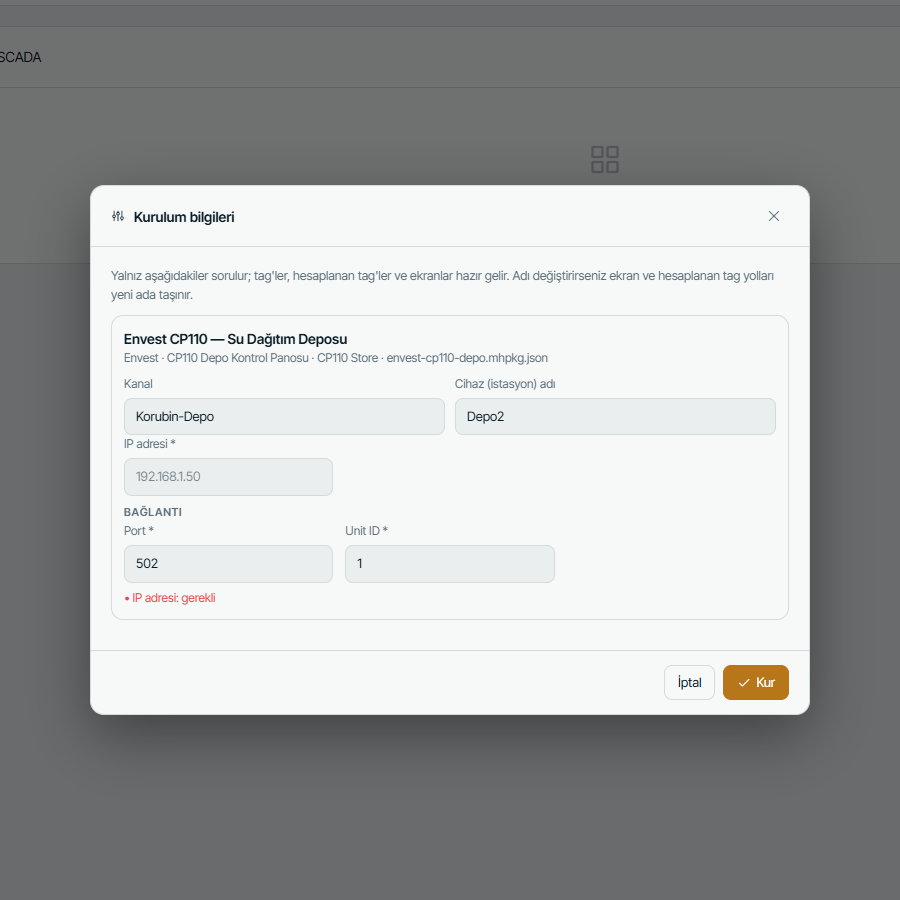
A device template (MergenHub package) is a single JSON file that carries a device in full: channel and driver settings, the device, its register map (tags), calculated tags, alarms and operator screens. At installation only site-specific values (IP address, port, unit ID…) are asked; everything else comes ready. The file extension is .mhpkg.json.
This page explains how to build a package, what its fields mean and what happens at installation.
Where packages are used
- MergenHub web interface — the Device Library dialog (the books icon in the project tree header, the Device Library button in the Connectivity view, or the card in the SCADA new-screen chooser). It installs from the library, and Import from file installs a
.mhpkg.jsonfile you have. - MergenHub Mobile — the Add device wizard (library, my templates, file, clipboard, QR, address), the Templates page and Import package / template. See MergenHub Mobile.
- Device Library — packages prepared and tested by Envest are published on the website, and the apps read them from a public API:
GET /api/v1/library(catalogue),GET /api/v1/library/{slug}(one device),GET /api/v1/library/{slug}/package(the package file).
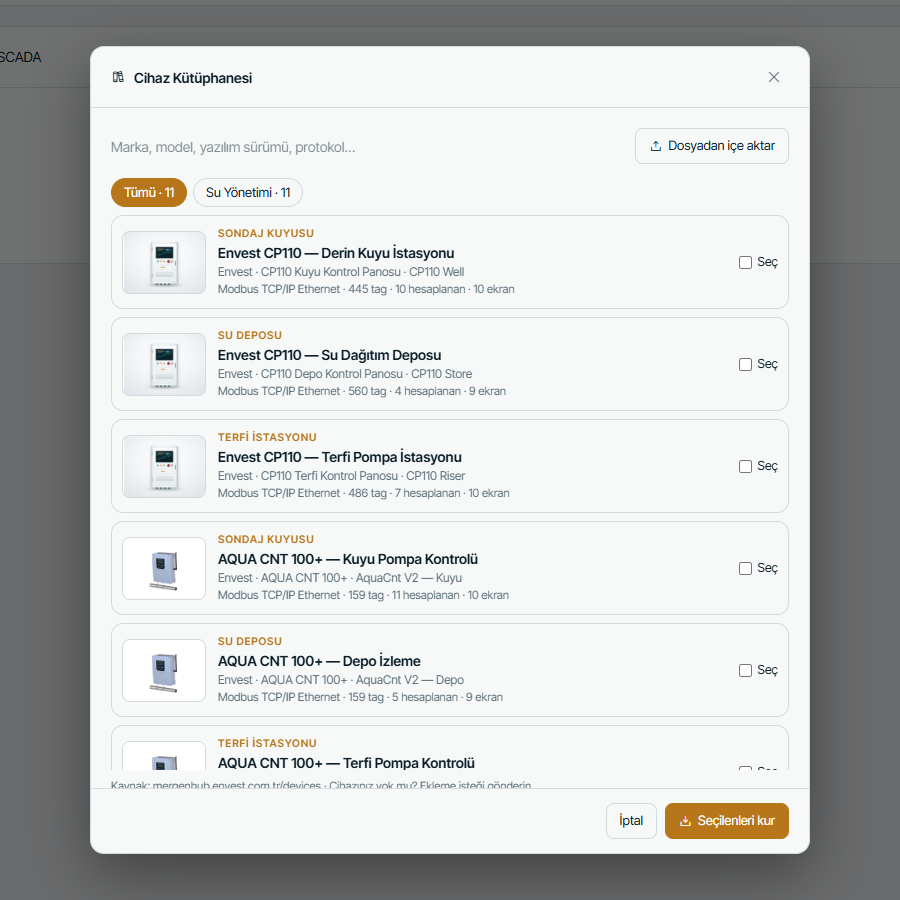
On a server without internet access, download the package from the website and install it with Import from file.
Quick start
The easiest way is to start from a working device:
- Open MergenHub Mobile in phone mode, define the device with its channel, device and a few tags, and check that values arrive.
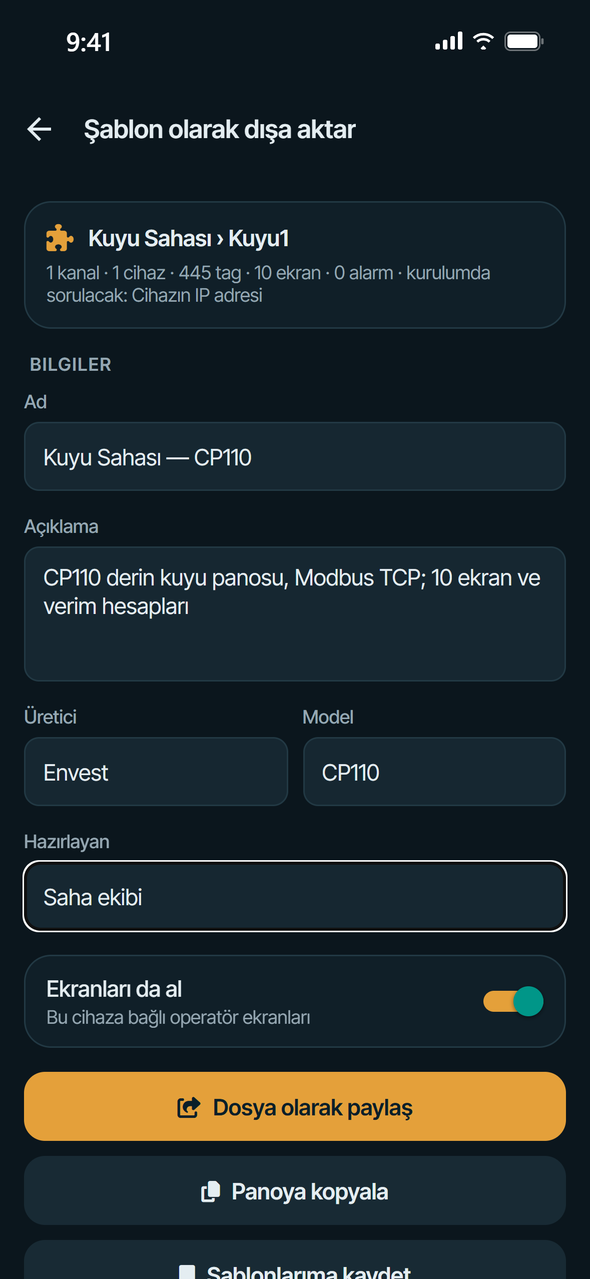
- On the Kanallar (Channels) tab open the device's ⋯ menu and choose Şablon olarak kaydet / paylaş (Save / share as template). Enter name, description, vendor and model; leave Ekranları da al (Include screens) on if screens should come along.
- Get the package with Dosya olarak paylaş (Share as file) or Panoya kopyala (Copy to clipboard). IP addresses in the device ID and settings have been turned into the
{{ip}}parameter automatically. - Edit the file in a text editor or with an AI assistant (add tags, write descriptions, add alarms and screens). The
guidesection of an exported file contains the format rules, the setting keys of the drivers used, address examples and the symbol list. - Bring the package back: on the phone Cihaz ekle › Dosya, pano, QR ya da adres (Add device › File, clipboard, QR or address), on the server Device Library › Import from file.
To package a whole project use Daha › Proje › Projeyi dışa aktar (More › Project › Export project) on the phone (kind: "project").
File structure
A package is a single JSON object:
{
  "format": "mergenhub-package",
  "formatVersion": 1,
  "kind": "template",
  "meta": { "name": "…" },
  "parameters": [],
  "channels": [],
  "derived": [],
  "alarms": [],
  "screens": [],
  "notes": "…"
}| Field | Required | Description |
|---|---|---|
format | yes | Always "mergenhub-package" |
formatVersion | recommended | Currently 1; a package with a higher version than the app knows is rejected |
kind | yes | "template" (device template, parameters asked at installation) or "project" (a whole project) |
meta | yes | Name and descriptive information |
parameters | no | Values asked at installation |
channels | yes | Channel → device → tag tree (at least one channel) |
derived | no | Calculated (advanced) tags |
alarms | no | Alarm definitions |
screens | no | Operator screens |
notes | no | Free text (Markdown) describing what the device does |
guide | no | Explanatory section written on export; ignored on import |
A device template contains one channel with one device. Only then are the channel and device names asked at installation, and paths move when the name changes.
meta
| Field | Description |
|---|---|
name | Display name of the package (required), e.g. "Example EA-100 Energy Meter" |
description | A one- or two-sentence summary |
vendor, model, version | Manufacturer, model and device firmware version; shown in lists and search |
author | Who prepared it |
keywords | Search keywords (array) |
homepage | Product page address |
createdAt, createdWith | Written automatically on export |
Parameters and placeholders
parameters are the fields the user is asked at installation. Wherever {{key}} appears in any string value of the package, it is replaced with the value the user entered.
"parameters": [
  { "key": "ip", "label": "IP address", "type": "text", "required": true, "placeholder": "192.168.1.50" },
  { "key": "port", "label": "Port", "type": "number", "default": 502, "group": "Connection" },
  { "key": "unit", "label": "Unit ID", "type": "number", "default": 1, "group": "Connection" }
]| Field | Description |
|---|---|
key | Starts with a letter or _; contains letters, digits and _ (e.g. ip, port, unit, fins_node) |
label | Name shown in the form |
type | text (default), number or select |
default | Default value |
required | If true the field cannot be left empty |
placeholder, hint | In-field example and help text below |
group | Heading in the form; fields of the same group are shown together |
options | For select: [{ "value": 1, "label": "TCP" }, …] |
Rules:
- Placeholders work only inside string values. To bind a numeric setting to a parameter, write it as a string:
"modbus_ethernet.DEVICE_ETHERNET_PORT_NUMBER": "{{port}}". Numeric driver settings are converted to numbers at installation. - The device ID is typically built from parameters:
"id": "<{{ip}}>.{{unit}}". - If any
{{…}}is left unfilled after applying the values, installation is blocked. - Leave the IP address default empty and set
required: true; put an example address inplaceholder. That way nobody can install without entering the address.
Channels, devices and tags
"channels": [
  {
    "name": "Energy",
    "driver": "Modbus TCP/IP Ethernet",
    "settings": {},
    "devices": [
      {
        "name": "Meter1",
        "id": "<{{ip}}>.{{unit}}",
        "scanMs": 1000,
        "timeouts": { "connectS": 3, "requestMs": 1000, "retries": 3 },
        "settings": { "modbus_ethernet.DEVICE_ETHERNET_PORT_NUMBER": "{{port}}" },
        "tags": [
          { "name": "VoltageL1", "address": "30001", "type": "Float", "access": "read", "scanMs": 1000, "units": "V" }
        ],
        "groups": []
      }
    ]
  }
]
Channel
| Field | Description |
|---|---|
name | Channel name (required, no dots) |
driver | Full driver name (table below) |
settings | Channel-level driver settings (Kepware-compatible keys) |
description | Description |
devices | Array of devices (required) |
Device
| Field | Default | Description |
|---|---|---|
name | — | Device name (required, no dots) |
id | per driver | Device ID; the format depends on the driver |
description | — | Description |
enabled | true | If false the device is not scanned |
scanMs | 1000 | Device scan rate (ms) |
scanMode | 4 | 0 respect client, 1 no faster than, 2 fixed rate, 3 demand poll, 4 respect tag rate |
timeouts | 3 / 1000 / 3 | connectS connect timeout (s), requestMs request timeout (ms), retries retry attempts |
settings | driver defaults | Device-level driver settings |
tags, groups | — | Tags and tag groups |
Tag
| Field | Default | Description |
|---|---|---|
name | — | Tag name (required, no dots, unique within the device or group) |
address | — | Address in the driver's syntax (required) |
type | Default | Data type (below) |
access | read | read or readwrite |
scanMs | 1000 | Tag scan rate (ms) |
description | — | Description; shown as a unit in the app if 6 characters or fewer |
units | — | Unit; used as the description when description is empty |
scaling | — | Scaling (below) |
Data types: Default, Boolean, Char, Byte, Short, Word, Long, DWord, Float, Double, String, BCD, LBCD, Date, LLong, QWord. Default is the type the driver chooses for the address.
Scaling converts the raw value to engineering units; writes apply it in reverse:
"scaling": { "type": "linear", "rawLow": 0, "rawHigh": 10, "low": 0, "high": 1, "resultType": "Double", "units": "kWh" }type is linear or sqrt (square root); rawLow/rawHigh the raw range, low/high the scaled range; resultType the scaled data type (default Double); clampLow, clampHigh clamp at the limits, negate inverts the sign.
Groups organise tags in folders inside the device and can be nested. A tag in a group has the path Channel.Device.Group.Tag.
"groups": [ { "name": "Energy", "description": "Counters", "tags": [ … ], "groups": [ … ] } ]Drivers and address syntax
driver takes the driver's full name. Address syntax and setting keys are the same in the MergenHub server and MergenHub Mobile; for details see Protocol drivers.
Driver (driver) | Device ID (id) | Address examples |
|---|---|---|
Simulator | device number, e.g. 1 | SINE:10:0:100, RAMP:30:0:500, RANDOM:20:80, REG:1 |
Modbus TCP/IP Ethernet | <IP>.Unit, e.g. <192.168.1.10>.1 | 40001 holding, 30001 input register, 00001 coil, 10001 discrete input, 40001.3 bit, 40010.16H string |
Modbus RTU Serial, Modbus ASCII Serial | slave address 1–247 | same as Modbus TCP |
Siemens S7 TCP/IP | <IP>.Rack.Slot, e.g. <192.168.0.1>.0.1 | DB1.DBD4, DB1.DBW2, DB1.DBB0, DB1.DBX0.3, MW10, I0.0, Q0.0 |
OMRON FINS Ethernet | <IP>.Node, e.g. <192.168.1.10>.1 | D100, D0.05, CIO10, W5.00, H2, A3, E100 |
OMRON NJ Ethernet | <IP> | PumpState, Line1.Valve[3], Matrix[1,2], Counter.5 |
MQTT Client | broker host:port (ignored if the channel sets a broker) | sensors/temp, sensors/pump1:/flow, plant/csv;idx=2;sep=; |
DNP Client Ethernet | outstation IP | AI0, BI5, CTR2, AO1, BO3, 30.1.51.Value |
IEC 60870-5-104 Client | RTU IP | 100, IOA100, M_ME_NC.100.VALUE, C_SC_NA.3000.DIRECTVALUE |
IEC 61850 MMS Client | IED IP | LD0/MMXU1.MX.TotW.mag.f, LD0/XCBR1.ST.Pos.stVal |
OPC UA Client | not used (endpoint is a channel setting) | ns=2;s=Channel.Device.Tag, ns=2;i=1001 |
Frequently used setting keys:
- Modbus TCP (device):
modbus_ethernet.DEVICE_ETHERNET_PORT_NUMBER(502),modbus_ethernet.DEVICE_ZERO_BASED_ADDRESSING,modbus_ethernet.DEVICE_FIRST_WORD_LOW(word order for 32-bit values),modbus_ethernet.DEVICE_HOLDING_REGISTERS(block size, 1–125). - Modbus RTU/ASCII (device):
servermain.DEVICE_ETHERNET_COMMUNICATIONS_IPandservermain.DEVICE_ETHERNET_COMMUNICATIONS_PORT(serial server), plusmodbus.DEVICE_…keys. - Siemens S7 (device):
siemens_tcpip_ethernet.DEVICE_COMMUNICATIONS_PORT_NUMBER(102),siemens_tcpip_ethernet.DEVICE_S7_COMMUNICATIONS_CPU_RACK,…_CPU_SLOT, and for the modelservermain.DEVICE_MODEL(0 S7-200, 1 S7-300, 2 S7-400, 3 S7-1200, 4 S7-1500). - OMRON FINS: on the channel
omron_fins_ethernet.CHANNEL_PORT_NUMBER(9600); on the deviceomron_fins_ethernet.DEVICE_PROTOCOL(0 UDP, 1 TCP) and the node numbers. - MQTT (channel):
mqtt.BROKER_HOST,mqtt.PORT,mqtt.USERNAME,mqtt.PASSWORD,mqtt.QOS,mqtt.TRANSPORT. - OPC UA client (channel):
opcuaclient.CHANNEL_UA_SERVER_ENDPOINT_URL.
A setting you leave out takes the driver default. All setting keys of a driver, with explanations, are in the guide.drivers section of any package exported with that driver.
Calculated tags
The derived array defines tags calculated from other tags. Once installed their path is _AdvancedTags.<name>; screens and alarms use that path.
"derived": [
  {
    "name": "Meter1_ApparentPower",
    "type": "Derived",
    "expression": "ROUND({Energy.Meter1.VoltageL1} * {Energy.Meter1.CurrentL1} / 1000, 2)",
    "scanRateMs": 1000,
    "description": "Apparent power (kVA)"
  }
]| Field | Description |
|---|---|
name | Name; unique across the server — start it with the device name (<Device>_…) |
type | Derived (expression), Totalizer, Average, Maximum, Minimum |
expression | For Derived the expression; for the others the source tag path (without braces) |
sampleSize | Sample count for average / maximum / minimum (default 10) |
scanRateMs | Update rate (ms, default 1000) |
enabled | Default true |
description | Description |
dataType | Result data type code on the server (default 9 = Double); ignored on the phone |
A totalizer sums value × seconds; for an m³/h input divide the result by 3600.
Function reference
In an expression a tag reference is written {Channel.Device.Tag} (with a group, {Channel.Device.Group.Tag}). Operators: + - * / %, comparisons <, <=, >, >=, ==, != (1 if true, 0 if false), logic &&, ||, ! and parentheses. The decimal separator is always a dot (1.5). Function names are case-insensitive; functions without arguments still need parentheses (PI()). An expression can be at most 8000 characters. The function list is the same on the server and the phone.
| Function | Description |
|---|---|
ABS(x) | Absolute value |
SQRT(x) | Square root (0 for negative input) |
POW(x, y) | x to the power y |
EXP(x), LN(x) | e to the power x, natural logarithm |
LOG(x), LOG(x, base) | Base-10 or given-base logarithm |
ROUND(x), ROUND(x, digits) | Rounding (half away from zero; 0–15 digits) |
FLOOR(x), CEIL(x) | Round down / up |
MOD(a, b) | Remainder (0 if b = 0) |
SIGN(x) | Sign: −1, 0, 1 |
MIN(a, b, …), MAX(a, b, …) | Smallest / largest |
AVG(a, b, …), SUM(a, b, …) | Average / sum |
IF(cond, a, b) | a if cond is non-zero, otherwise b |
CLAMP(x, low, high) | Limit to a range |
MAP(x, inLow, inHigh, outLow, outHigh) | Linear scaling |
LERP(a, b, t) | Linear interpolation between a and b |
POLY(x, c0, c1, c2, …) | Polynomial: c0 + c1·x + c2·x² + … |
HYPOT(a, b) | √(a² + b²) |
SIN, COS, TAN, ASIN, ACOS, ATAN | Trigonometry (radians) |
ATAN2(y, x) | Two-argument arctangent |
SINH, COSH, TANH | Hyperbolic functions |
DEG(x), RAD(x) | Radians to degrees, degrees to radians |
PI(), E() | Constants |
RANDOM(), RANDOM(high), RANDOM(low, high), RND(…) | Random number; for testing only |
Examples: ({C.D.A} + {C.D.B}) / 2, IF({C.D.Pressure} > 6, 1, 0), MAX({C.D.Level} - {C.D.Static}, 0), MAP({C.D.Raw}, 4, 20, 0, 10).
Alarms
"alarms": [
  { "name": "High voltage L1", "tag": "Energy.Meter1.VoltageL1", "conditionType": "Hi", "limit": 250,
    "deadband": 2, "severity": 700, "message": "Phase 1 voltage above 250 V", "enabled": true }
]| Field | Default | Description |
|---|---|---|
name | — | Alarm name |
tag | — | Full path of a tag in the package, or _AdvancedTags.<name> (required, must exist in the package) |
conditionType | — | HiHi, Hi, Lo, LoLo, DevHi, DevLo (deviation), RocHi, RocLo (rate of change, units/s) |
limit | — | Limit |
setpoint | 0 | Setpoint for deviation alarms |
deadbandType, deadband | Absolute, 0 | Deadband: None, Absolute, Percent |
rangeLow, rangeHigh | 0, 100 | Range for a percent deadband |
onDelaySec, offDelaySec | 0 | On and off delay (s) |
severity | 500 | 1–1000; 800 and above is critical |
message, area | — | Message and area |
enabled | true | Enabled |
Screens
Screens have the same structure as the server's SCADA screens. A screen consists of objects (widgets) placed in a coordinate space (width × height).
| Field | Description |
|---|---|
id | Unique within the package (required); renewed at installation, links are moved |
name | Screen name; if it contains the device name, it is renamed at installation |
target | "server" (installed only on the server), "phone" (only in phone mode) or absent (both) |
parentId | id of the parent screen; empty for a main screen |
order | Order among sub-screens |
width, height | Coordinate space; phone portrait 400 × 700 (taller for long screens), server e.g. 1200 × 700 |
background | Background colour (#eef2f7); on phone screens leave it empty to follow the theme |
group, zoneId | Screen group and zone on the server; leave empty in templates |
widgets | Objects |
Two screen sets
A good device package carries two sets:
- Server set (
"target": "server") — one main screen (emptyparentId) with the settings screens under it (parentId= the main screen'sid). In the web interface the main screen appears in the list and the settings screens in its branch. Put buttons (nav) from the main screen to the settings screens and back. - Phone set (
"target": "phone") — a portrait Summary screen (measurements, controls and buttons to the settings screens) with single-column settings screens as its sub-screens. In phone mode a tab strip with the Summary and the sub-screens appears on top. Name the screens<Device> — Summary,<Device> — Settings; the tabs show the part after "—".
At installation only the set matching the target is installed. A screen whose parent belongs to the other set becomes a main screen; nav links into the other set are removed. A screen without target is installed in both places.
Objects
{ "id": "w2", "type": "display", "x": 24, "y": 80, "w": 220, "h": 80,
"tag": "Energy.Meter1.VoltageL1", "props": { "label": "Voltage L1", "units": "V", "decimals": 1 } }| Field | Description |
|---|---|
id | Unique within the package (e.g. w1, w2 …) |
type | Object type (below) |
x, y, w, h | Position and size (in screen coordinates) |
rot | Rotation (degrees) |
tag | Bound tag path: Channel.Device.Tag or _AdvancedTags.<name> |
props | Properties depending on the type |
anims | Conditional rules |
onClick, nav | To go to another screen on tap: "onClick": "nav" and "nav": "<screen id>" |
popupScreen | Screen shown as a popup (server) |
| Type | What it does | Key props |
|---|---|---|
display | Value display | label, units, decimals, color, fontSize |
label | Static text (no tag) | text, fontSize, color, align |
lamp | Lamp | label, onColor, offColor, onText, offText, blinkOn, onOp/onA/onB |
button | Writes onValue/offValue when pressed | label, onValue, offValue, onText, offText, onColor, offColor |
switch | Switch (writes like a button) | label, onValue, offValue, onText, offText, onColor |
radio | Option button | label, onValue, offValue |
input | Value input (writable tag) | label, decimals |
sfield | Setting row: label + value (+ unit) | label, units, decimals, editable, step |
gauge | Dial gauge | label, min, max, units, decimals, fillColor |
tank, levelbar | Tank level, level bar | label, min, max, units, decimals, fillColor |
pump, motor, fan, valve | Machine icons (spin / change colour when running) | label, onColor, offColor, onText, offText, spin, blinkOn, onOp/onA/onB |
pipe | Pipe; coloured when flowing | thickness, flowColor, onOp/onA |
rect | Panel / rectangle (no tag) | fill, stroke, radius |
image | Image (no tag) | src (data URI or address) |
svg | Object from the symbol library | lib2 (symbol id), label, onOp/onA/onB, onColor, offColor |
On state. For lamps, machines and symbols, when the object counts as "on" is set with onOp (gt, ge, eq, ne, lt, le, between), onA and onB; without them the object is on when the value is greater than 0.5.
Conditional rules (anims): { "kind": "color", "tag": "", "op": "gt", "a": 80, "b": null, "p2": "#ef4444" }. kind: color (sets the colour to p2), blink, visible (hides the object while the condition is true), level (fill: a minimum, b maximum, p2 colour, op always). An empty tag means the object's own tag.
Symbols. The lib2 field of an svg object is an id from the built-in symbol library (e.g. en-pumps/en_pump_submersible_1, en-meters/en_flowmeter_1, pumps_centrifugal_pump_4). The full list of ids is in the guide.symbols section of exported packages.
Server screens may also use the other object types of the web SCADA editor; the phone shows them as faded boxes and the check gives a warning. For screens that must work in both places, use the types in the table.
Naming and renaming at installation
- Channel, device, group and tag names contain no dots (
.); the dot is the path separator. Names must be unique at their level (case-insensitive). - A tag path is
Channel.Device.Tag(in a groupChannel.Device.Group.Tag). Screens, alarms and expressions always use the full path. - A device name is unique only within its channel; the same package can be installed into the same channel many times with different device names.
- Calculated tag names are unique across the server. Start every calculated tag's name with the device name:
Meter1_ApparentPower. When the device name changes at installation the prefix changes too (Meter2_ApparentPower), so the same package installs a second time without a clash.
If the user changes the channel and device name at installation, the package is updated as follows:
- All paths starting with
Channel.Device(objecttags on screens, rules, alarmtags,{…}references in expressions) move to the new name. - Calculated tags whose name starts with
<OldDevice>_are renamed to<NewDevice>_, and_AdvancedTags.…references move with them. - The old device name in screen names and in the
textoflabelobjects (as a whole word, if at least 3 characters long) is replaced with the new one.
Clashes checked at installation:
- If the channel name is used on the target with another driver, installation is blocked; if it is used with the same driver, the device is added to the existing channel.
- If a device with the same name exists in the channel, installation is blocked; the app suggests the first free numbered name (Meter1 → Meter2).
- If a calculated tag name already exists on the target, installation is blocked; a different device name resolves it.
Validation and common errors
MergenHub Mobile checks a package before installing it; problems are listed on the installation card. The web interface's Import from file checks parameters, names and clashes but does not validate addresses against the driver, so it is good practice to try a new package on the phone first.
Errors (installation blocked):
Bu bir MergenHub paketi değil(not a MergenHub package) — theformatfield is missing or wrong.JSON hatası (satır …, sütun …)(JSON error at line, column) — a syntax error; the position and surrounding text are shown.Bilinmeyen sürücü "…"(unknown driver) — write the driver's full name indriver(e.g.Modbus TCP/IP Ethernet).Adres geçersiz (…)(invalid address) — the address does not match the driver's syntax; the message says why (e.g. for Modbus the area digit must be 0, 1, 3 or 4).Bilinmeyen veri tipi "…"(unknown data type) — type names are written as in the list above (Float, notfloat32).access "read" ya da "readwrite" olmalı(access must be read or readwrite).… adı tekrar ediyor(duplicate name),… adında nokta olamaz(name contains a dot),… adı boş(empty name).Alarm …: Tag bulunamadı(tag not found) — the alarm's tag is not in the package.Geçersiz parametre anahtarı(invalid parameter key) — the key contains characters other than letters, digits and_.{{…}} için değer girilmedi(no value for a placeholder) — a placeholder has no parameter or the value is empty.
Warnings (installation proceeds, but have a look):
Paket içinde olmayan tag'e bağlı(bound to a tag not in the package) — a screen object, rule or expression uses a path that is not in the package; usually a typo.Gidilecek ekran pakette yok(target screen not in the package) —navdoes not match any screenid.Bu uygulamanın tanımadığı nesne tipi(object type unknown to this app) — the phone cannot draw it; it may work on the server.Sembol kütüphanede yok(symbol not in the library) — wronglib2id.
Expressions are compiled by the server at installation; a broken expression (unknown function, wrong argument count, a comma decimal such as 1,5) is listed as "not installed" in the result, and the other parts are installed.
The app tolerates // and /* */ comments and trailing commas, but the web interface does not accept comments. Write packages as plain, valid JSON without comments.
Complete example
A single Modbus TCP energy meter: six tags (one scaled, two writable), one calculated tag, one alarm, a main screen and a settings screen in the server set, a Summary and a settings screen in the phone set. This package passes the MergenHub Mobile check with no errors and no warnings.
{
  "format": "mergenhub-package",
  "formatVersion": 1,
  "kind": "template",
  "meta": {
    "name": "Example EA-100 Energy Meter",
    "description": "Single-phase energy metering, relay output and CT ratio setting.",
    "vendor": "Example",
    "model": "EA-100",
    "version": "1.0",
    "author": "Envest",
    "keywords": ["energy", "meter", "Modbus TCP"]
  },
  "parameters": [
    { "key": "ip", "label": "IP address", "type": "text", "required": true, "placeholder": "192.168.1.50", "hint": "Address of the meter on the network" },
    { "key": "port", "label": "Port", "type": "number", "default": 502, "group": "Connection" },
    { "key": "unit", "label": "Unit ID", "type": "number", "default": 1, "group": "Connection" }
  ],
  "channels": [
    {
      "name": "Energy",
      "driver": "Modbus TCP/IP Ethernet",
      "devices": [
        {
          "name": "Meter1",
          "id": "<{{ip}}>.{{unit}}",
          "scanMs": 1000,
          "timeouts": { "connectS": 3, "requestMs": 1000, "retries": 3 },
          "settings": { "modbus_ethernet.DEVICE_ETHERNET_PORT_NUMBER": "{{port}}" },
          "tags": [
            { "name": "VoltageL1", "address": "30001", "type": "Float", "access": "read", "scanMs": 1000, "units": "V" },
            { "name": "CurrentL1", "address": "30003", "type": "Float", "access": "read", "scanMs": 1000, "units": "A" },
            { "name": "ActivePower", "address": "30005", "type": "Float", "access": "read", "scanMs": 1000, "units": "kW" },
            { "name": "TotalEnergy", "address": "30007", "type": "DWord", "access": "read", "scanMs": 5000,
              "scaling": { "type": "linear", "rawLow": 0, "rawHigh": 10, "low": 0, "high": 1, "resultType": "Double", "units": "kWh" } },
            { "name": "RelayOutput", "address": "00001", "type": "Boolean", "access": "readwrite", "scanMs": 1000, "description": "Relay output (1 = energised)" },
            { "name": "CtRatio", "address": "40001", "type": "Word", "access": "readwrite", "scanMs": 5000, "description": "Current transformer ratio (e.g. 100 = 100/5 A)" }
          ]
        }
      ]
    }
  ],
  "derived": [
    {
      "name": "Meter1_ApparentPower",
      "type": "Derived",
      "expression": "ROUND({Energy.Meter1.VoltageL1} * {Energy.Meter1.CurrentL1} / 1000, 2)",
      "scanRateMs": 1000,
      "description": "Apparent power (kVA) = voltage × current / 1000"
    }
  ],
  "alarms": [
    {
      "name": "High voltage L1",
      "tag": "Energy.Meter1.VoltageL1",
      "conditionType": "Hi",
      "limit": 250,
      "deadband": 2,
      "severity": 700,
      "message": "Phase 1 voltage above 250 V",
      "enabled": true
    }
  ],
  "screens": [
    {
      "id": "ea100-main", "name": "Meter1 — Energy Meter", "target": "server", "parentId": "", "order": 0,
      "width": 1200, "height": 700, "background": "#eef2f7",
      "widgets": [
        { "id": "w1", "type": "label", "x": 24, "y": 16, "w": 700, "h": 40, "props": { "text": "ENERGY METER — Meter1", "fontSize": 24, "color": "#0f172a" } },
        { "id": "w2", "type": "display", "x": 24, "y": 80, "w": 220, "h": 80, "tag": "Energy.Meter1.VoltageL1", "props": { "label": "Voltage L1", "units": "V", "decimals": 1 } },
        { "id": "w3", "type": "display", "x": 264, "y": 80, "w": 220, "h": 80, "tag": "Energy.Meter1.CurrentL1", "props": { "label": "Current L1", "units": "A", "decimals": 2 } },
        { "id": "w4", "type": "display", "x": 504, "y": 80, "w": 220, "h": 80, "tag": "Energy.Meter1.ActivePower", "props": { "label": "Active power", "units": "kW", "decimals": 2 } },
        { "id": "w5", "type": "display", "x": 744, "y": 80, "w": 220, "h": 80, "tag": "Energy.Meter1.TotalEnergy", "props": { "label": "Total energy", "units": "kWh", "decimals": 1 } },
        { "id": "w6", "type": "gauge", "x": 24, "y": 180, "w": 240, "h": 220, "tag": "_AdvancedTags.Meter1_ApparentPower", "props": { "label": "Apparent power", "min": 0, "max": 50, "units": "kVA", "decimals": 2 } },
        { "id": "w7", "type": "switch", "x": 284, "y": 180, "w": 200, "h": 70, "tag": "Energy.Meter1.RelayOutput", "props": { "label": "Relay", "onValue": 1, "offValue": 0, "onText": "ON", "offText": "OFF", "onColor": "#22c55e" } },
        { "id": "w8", "type": "rect", "x": 24, "y": 620, "w": 200, "h": 56, "props": { "fill": "#1d4ed8", "stroke": "#1d4ed8", "radius": 10 }, "onClick": "nav", "nav": "ea100-settings" },
        { "id": "w9", "type": "label", "x": 24, "y": 620, "w": 200, "h": 56, "props": { "text": "Settings", "fontSize": 16, "color": "#ffffff" }, "onClick": "nav", "nav": "ea100-settings" }
      ]
    },
    {
      "id": "ea100-settings", "name": "Meter1 — Settings", "target": "server", "parentId": "ea100-main", "order": 1,
      "width": 1200, "height": 700, "background": "#eef2f7",
      "widgets": [
        { "id": "w10", "type": "label", "x": 24, "y": 16, "w": 700, "h": 40, "props": { "text": "SETTINGS — Meter1", "fontSize": 24, "color": "#0f172a" } },
        { "id": "w11", "type": "sfield", "x": 24, "y": 80, "w": 520, "h": 44, "tag": "Energy.Meter1.CtRatio", "props": { "label": "CT ratio", "decimals": 0, "editable": true, "step": 5 } },
        { "id": "w12", "type": "rect", "x": 24, "y": 620, "w": 200, "h": 56, "props": { "fill": "#1d4ed8", "stroke": "#1d4ed8", "radius": 10 }, "onClick": "nav", "nav": "ea100-main" },
        { "id": "w13", "type": "label", "x": 24, "y": 620, "w": 200, "h": 56, "props": { "text": "‹ Main screen", "fontSize": 16, "color": "#ffffff" }, "onClick": "nav", "nav": "ea100-main" }
      ]
    },
    {
      "id": "ea100-phone", "name": "Meter1 — Summary", "target": "phone", "parentId": "", "order": 0,
      "width": 400, "height": 700, "background": "",
      "widgets": [
        { "id": "w14", "type": "rect", "x": 0, "y": 0, "w": 400, "h": 64, "props": { "fill": "#1d4ed8", "stroke": "#1d4ed8", "radius": 0 } },
        { "id": "w15", "type": "label", "x": 14, "y": 8, "w": 372, "h": 48, "props": { "text": "Energy Meter", "fontSize": 18, "color": "#ffffff", "align": "left" } },
        { "id": "w16", "type": "display", "x": 8, "y": 76, "w": 188, "h": 62, "tag": "Energy.Meter1.VoltageL1", "props": { "label": "Voltage L1", "units": "V", "decimals": 1 } },
        { "id": "w17", "type": "display", "x": 204, "y": 76, "w": 188, "h": 62, "tag": "Energy.Meter1.CurrentL1", "props": { "label": "Current L1", "units": "A", "decimals": 2 } },
        { "id": "w18", "type": "display", "x": 8, "y": 146, "w": 188, "h": 62, "tag": "Energy.Meter1.ActivePower", "props": { "label": "Active power", "units": "kW", "decimals": 2 } },
        { "id": "w19", "type": "display", "x": 204, "y": 146, "w": 188, "h": 62, "tag": "Energy.Meter1.TotalEnergy", "props": { "label": "Total energy", "units": "kWh", "decimals": 1 } },
        { "id": "w20", "type": "gauge", "x": 106, "y": 220, "w": 188, "h": 178, "tag": "_AdvancedTags.Meter1_ApparentPower", "props": { "label": "Apparent power", "min": 0, "max": 50, "units": "kVA", "decimals": 2 } },
        { "id": "w21", "type": "switch", "x": 8, "y": 410, "w": 384, "h": 58, "tag": "Energy.Meter1.RelayOutput", "props": { "label": "Relay", "onValue": 1, "offValue": 0, "onText": "ON", "offText": "OFF", "onColor": "#22c55e" } },
        { "id": "w22", "type": "rect", "x": 8, "y": 480, "w": 188, "h": 48, "props": { "fill": "#1d4ed8", "stroke": "#1d4ed8", "radius": 10 }, "onClick": "nav", "nav": "ea100-phone-settings" },
        { "id": "w23", "type": "label", "x": 8, "y": 480, "w": 188, "h": 48, "props": { "text": "Settings", "fontSize": 14, "color": "#ffffff" }, "onClick": "nav", "nav": "ea100-phone-settings" }
      ]
    },
    {
      "id": "ea100-phone-settings", "name": "Meter1 — Settings", "target": "phone", "parentId": "ea100-phone", "order": 1,
      "width": 400, "height": 700, "background": "",
      "widgets": [
        { "id": "w24", "type": "label", "x": 12, "y": 12, "w": 376, "h": 30, "props": { "text": "CURRENT TRANSFORMER", "fontSize": 13, "color": "#3b82f6", "align": "left" } },
        { "id": "w25", "type": "sfield", "x": 8, "y": 48, "w": 384, "h": 44, "tag": "Energy.Meter1.CtRatio", "props": { "label": "CT ratio", "decimals": 0, "editable": true, "step": 5 } }
      ]
    }
  ],
  "notes": "# Example EA-100\n\nReads voltage, current, active power and total energy; the relay output and the CT ratio are writable. The energy counter has 0.1 kWh resolution (raw value / 10)."
}
If you install this package with the device name Meter2, tag paths become Energy.Meter2.…, the calculated tag Meter2_ApparentPower and the screen names Meter2 — ….
Working with an AI assistant
The package format is designed to be read and written by AI assistants. You can give a device's register map, manual or datasheet to an assistant and have it prepare the package.
Download the MergenHub device template skill (zip). It contains:
SKILL.md— the workflow and hard rules the assistant follows.reference/format.md— a compact reference of every field.reference/drivers.md— driver names, device ID formats and address syntax.reference/expressions.md— expression functions.examples/minimal-modbus.mhpkg.json— a complete example that passes the check.
Upload the zip as a skill in the Claude app, or unpack it into ~/.claude/skills/ for Claude Code; with an assistant that does not support skills, attach the files to the conversation. Then ask, for example: "Build a MergenHub template for this energy meter from the attached register table; ask for IP, port and unit ID at installation; add an alarm at 250 V on the voltage."
Open the assistant's file in MergenHub Mobile first with Cihaz ekle › Dosya, pano, QR ya da adres › Panodan yapıştır (Paste from clipboard) and look at the check result; then install it on the server.
Getting a device into the official library
To have a device added to the Device Library, send a request from the customer panel on the website: Panel › Device requests › New request. The Ekleme isteği gönderin link under the library list in MergenHub Mobile and the library dialog in the web interface open the same page.
The form asks for brand, model, firmware version, category, communication protocol, product page, what the device does and which data you want to monitor, and connection details. You can attach up to five files (10 MB each): photo, register map, manual — and a .mhpkg.json package you prepared.
Requests are never published automatically. The Envest team verifies the device and documents, may ask you for details, prepares and tests the package (tags, screens) and adds it to the library itself. The request's status (received, in review, approved — in preparation, published or not accepted) and the team's note are shown in the panel; the decision is also sent by e-mail. A company can have at most ten pending requests at a time.