MergenHub Envest Live demo
Home/Modules/MergenHub Mobile
Module · MergenHub Mobile

The plant in your pocket: iOS and Android

MergenHub Mobile works in two modes: it connects to your MergenHub server, or it talks to devices directly from the phone with no server. Permissions are the same as for the web user, the password is not stored on the phone and alarms arrive as push notifications. No extra license is needed.

← All protocols & modules
Coming soonApp Store Coming soonGoogle Play

Server mode

Connect to a MergenHub server: the channel, device and tag tree, live values, writing to tags, alarm acknowledge, viewing SCADA screens, trends, device status and the event log. A user with the ConfigWrite permission adds, edits, copies and deletes channels, devices and tags, and can view or enter the server license. Permissions and channel/device access lists are the same as for the web user.

Phone mode

No server needed: the drivers run on the phone itself (Modbus TCP/RTU/ASCII, Siemens S7, OMRON FINS and NJ/NX (CIP), MQTT, DNP3, IEC 60870-5-104, IEC 61850 MMS, OPC UA client, Simulator). Address syntax and setting keys are the same as in MergenHub, and projects move between the phone and the server in both directions (Kepware/MergenHub JSON). Alarm definitions, advanced/derived tags (expression, totalizer, average/min/max) and operator screens designed on the phone are included. No license is required.

How it works

Two modes, one app

You choose the mode when you open the app. Both modes use the same screens; the difference is where the data comes from.

Server mode

The phone connects to the MergenHub server at the plant. MergenHub talks to the field; the phone monitors, writes and acknowledges alarms. Permissions and channel/device access lists are the same as for the web user.

PhoneMergenHub Mobile
MergenHub serverpermissions · audit · alarms
Field devicesPLC · RTU · meter

Push notifications

When an alarm is raised the server sends a notification, only to users with the Alarm permission and access to the tag who have notifications turned on. Notifications and mobile access are switched on and off in the web interface.

MergenHub serveralarm engine
Phonetap → acknowledge

Phone mode

With no server, the phone talks to the devices directly; the drivers run on the phone. The channels, devices and tags you set up are later sent to the server with one tap.

Phonedrivers on the phone
Field devicessame network
What it is for

On site, on call, in the meeting

On-call engineer

No missed night alarm

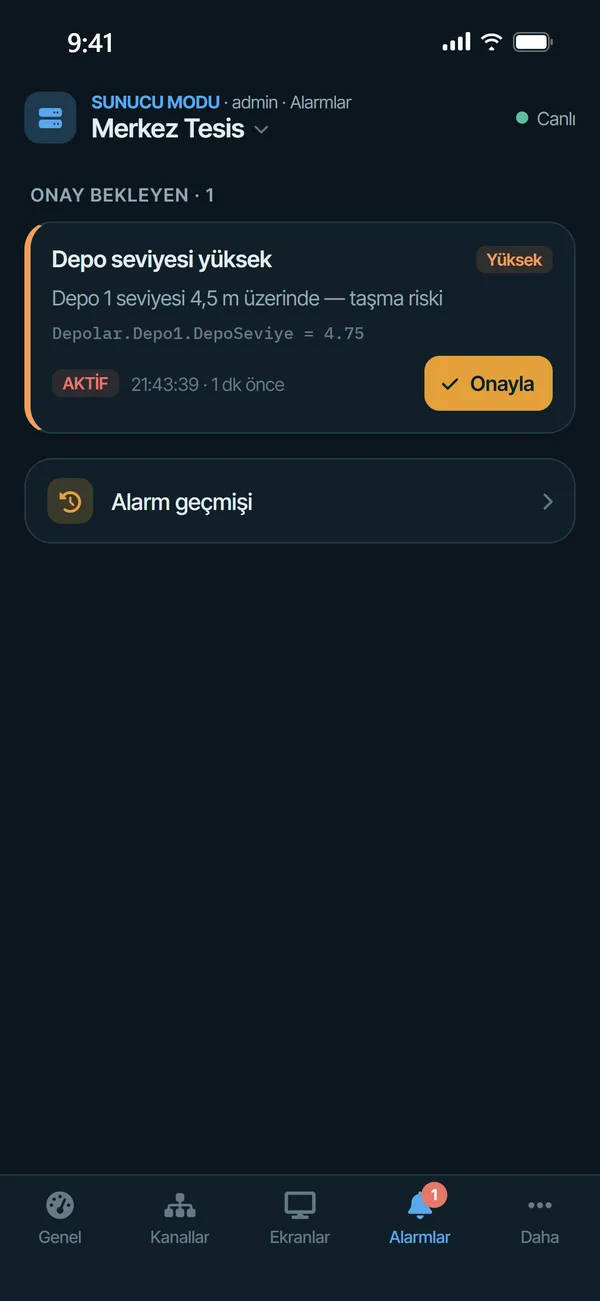
When the tank level drops a notification arrives; open the alarm, see the value and acknowledge. The action is logged in the audit trail with the source “Mobile”.

Operator

Screens everywhere

Watch the SCADA screens designed in the web interface on the phone; with the right permission start a pump or change a setpoint.

Field technician

Commissioning without a laptop

Read a new Modbus or S7 device from the phone and verify the addresses; send the finished project to the server.

Manager

Plant status at a glance

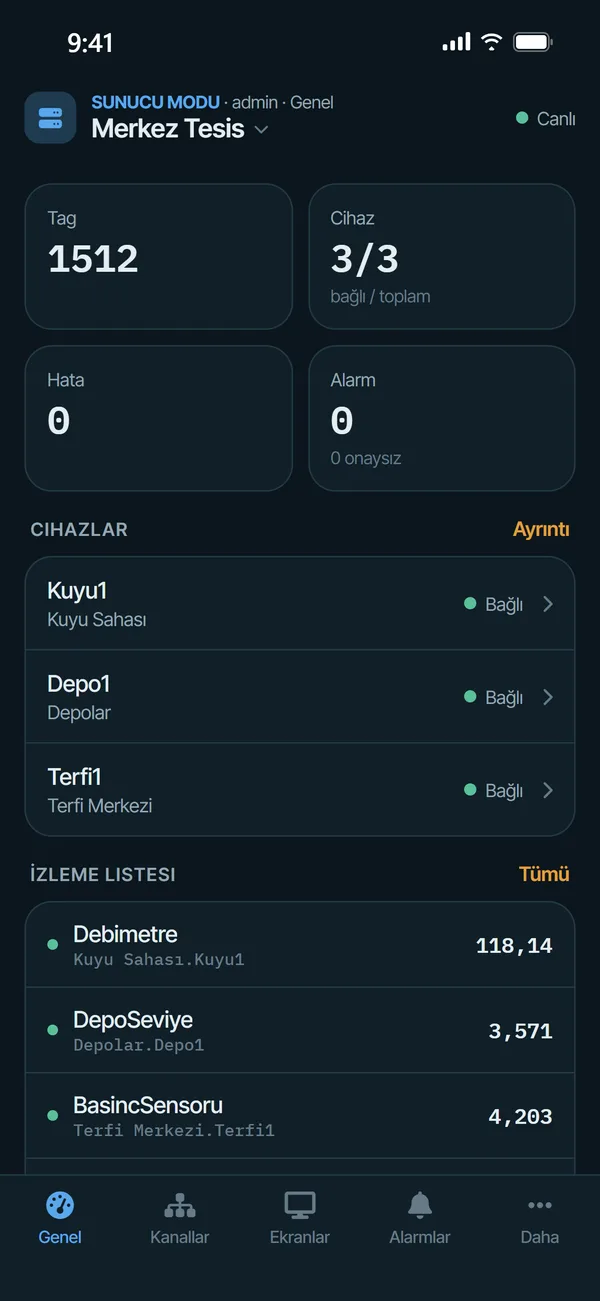
Connected devices, errors and active alarms, critical values on the watch list; several servers in one app.

Device library

A ready station in a minute

Devices tested by Envest come from the library on the website straight to the phone: channel, device, hundreds of tags, efficiency and cost calculations and screens are installed in one go — on the server in server mode, into the phone’s project in phone mode.

  1. Pick the device
    01

    Pick the device

    Search by brand, model or protocol and filter by category. Each device shows its description, tag list and the screens it installs.

  2. Enter the IP address
    02

    Enter the IP address

    Only site-specific details are asked: IP, port, unit ID. If the name is taken the next free number is suggested (Kuyu2 if Kuyu1 exists).

  3. Watch it live
    03

    Watch it live

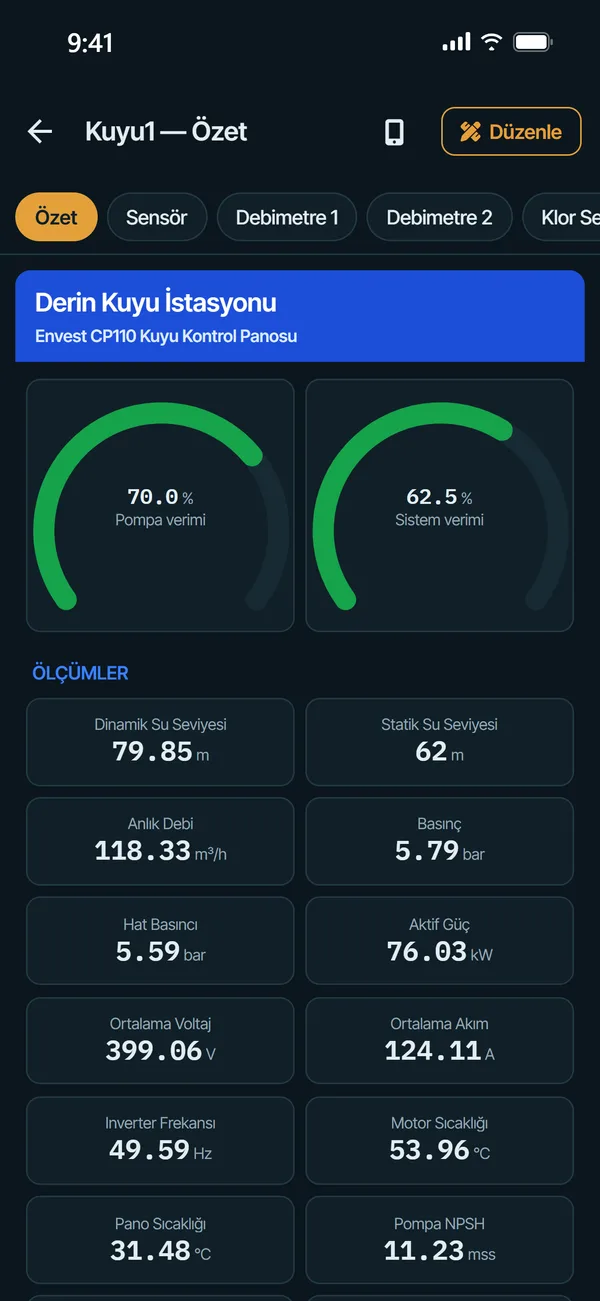
    The summary screen comes with efficiency gauges, measurements and controls; the settings screens are in the tabs at the top.

Example uses

A day in the field

Four scenarios from real work: who does what, step by step.

Field technician

Commissioning a new well without a laptop

The panel is installed and has an IP address; the technician stands at the station with nothing but a phone.

  1. In phone mode, Add device › Device library › CP110 Well.
  2. Enter the IP address and install; 445 tags, efficiency calculations and screens come ready.
  3. Compare level, flow and pressure on the summary with the gauges on the panel.
  4. Fix the calibration on the Sensor tab, then send the project to the server.
Commissioning a new well without a laptop
On-call engineer

3:12 a.m., the tank is about to overflow

When the tank level passes 4.5 m the server sends a push notification; it arrives even when the phone is locked.

  1. Tap the notification; see the value and time on the Alarms tab.
  2. Check on the well screen that the pump stopped in automatic mode.
  3. Acknowledge the alarm; it is logged in the audit trail with the source “Mobile”.
3:12 a.m., the tank is about to overflow
Operations manager

Morning round, before the coffee is gone

Several servers in one app; the state of each plant at a glance.

  1. Check connected devices, errors and alarms on the Overview tab.
  2. See flow, level and efficiency on the watch list.
  3. Check disk, memory and services under Server resources.
Morning round, before the coffee is gone
Automation engineer

Define once, install on every site

Defines the tags of a new analyser once, saves it with its screen as a template and shares it with the team.

  1. Device ⋯ menu › Save as template / share.
  2. Give the file to an AI assistant to add descriptions and alarms.
  3. The team installs it from Add device › My templates by entering only the IP.
Define once, install on every site
Screens from the app

Real screens, live values

Captured directly from MergenHub Mobile; values come live from demo well, tank and booster stations. The app interface is in Turkish.

Two modes: connect to a server or work serverless
Channel and device tree with status dots
Tag detail: live value, writing and trend
The server’s 3D station screen on the phone, landscape
Server resources: CPU, memory, disk, services
Every delete and change on the server asks for explicit confirmation
Screen editor on the phone: more than 260 symbols
Device templates: save, share, install by QR
Module

Core capabilities

Security

One session per device

The user signs in once with user name and password; the server issues a session token for that device. The password is not stored on the phone.

Management

Controlled from the web interface

Administrators turn mobile access on or off globally and per user, see device sessions and close them with one click. Active users and the “Source” column of the audit log show whether an action came from mobile or web.

Notifications

Push on alarm

When an alarm is raised the phone gets a push notification, only for users with the Alarm permission and access to the tag who have notifications turned on. The server needs outbound HTTPS to exp.host.

Projects

Two-way transfer with the server

A project built in phone mode moves to the server and a server project moves to the phone (Kepware/MergenHub JSON). Address syntax and setting keys are the same, so nothing has to be rewritten.

Platform

iOS and Android

Device sessions and notifications need MergenHub 3.5 or later; older servers are reached with HTTP Basic (without device sessions or notifications). The server must be reachable on the network (api.url 0.0.0.0); HTTPS is recommended for access over the internet.

License

No extra license

MergenHub Mobile needs no extra license. In server mode the server's existing license applies; phone mode is free.

Drivers in phone mode
Modbus TCP / RTU / ASCIISiemens S7OMRON FINSOMRON NJ/NX (CIP)MQTTDNP3IEC 60870-5-104IEC 61850 MMSOPC UA clientSimulator
Control safety

The password is not stored on the phone

GuaranteeYou sign in once; the phone keeps only the session token the server issued for that device. If a phone is lost, the administrator closes that session with one click in the web interface or turns off the user's mobile access; web access is not affected. The mobile app cannot change the server's mobile settings.