 MergenHub
 Every feature of MergenHub is available in every package; packages differ only by the number of tags a project may contain. Licenses are perpetual or annual subscriptions, bought from the pricing page or through a dealer, and activated in the application online or offline.
Packages
| Package | Tag limit |
|---|---|
| Starter | 1,000 |
| Standard | 5,000 |
| Professional | 25,000 |
| Corporate | 50,000 |
| Enterprise | unlimited |
Tags are counted as the total static tags in the project (channels › devices › tags including groups). Virtual tags, system tags, aliases and SCADA screens do not count.
Trial mode
An installation without a license runs in trial mode:
- all features enabled,
- 500 tags maximum,
- the runtime (scan engine) runs for 2 hours after each start; when the window expires scanning stops and tag quality becomes Bad until you start a new window (top-bar button, tray › Restart runtime, or restarting the service).
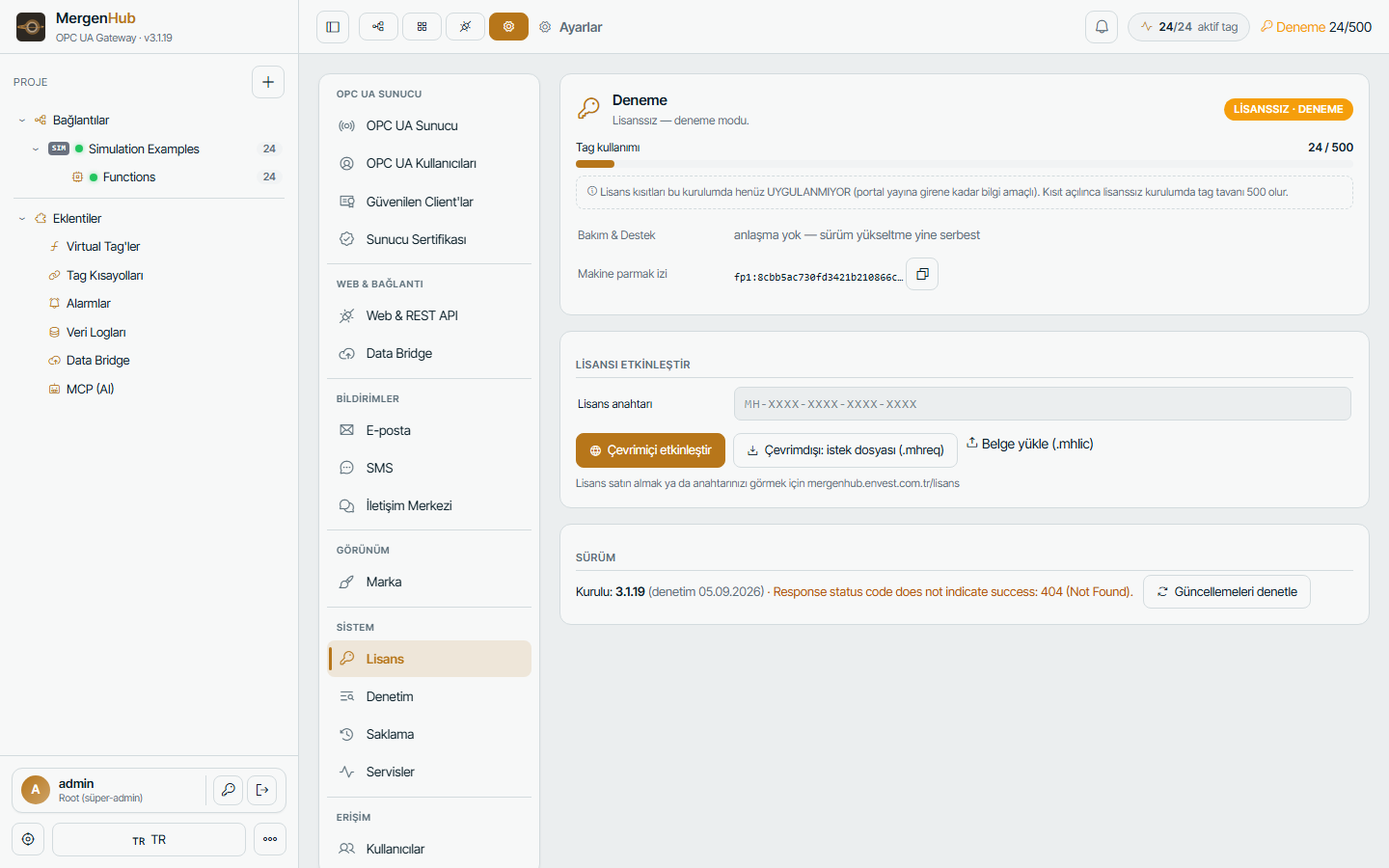
The top bar shows a TRIAL pill with a countdown. Entering a license key lifts both limits instantly; no reinstall or restart is needed.
Activating online
- Buy a license; the key looks like
MH-XXXX-XXXX-XXXX-XXXXand is shown in the customer portal and sent by e-mail. - In MergenHub open Settings › License, paste the key and click Activate.
- The application contacts the license portal, binds the key to this machine's fingerprint and stores a signed license document locally.
The document is refreshed automatically every few days (subscription end, maintenance status, revocation). If the portal is unreachable the license keeps working; after 14 days a warning is shown, nothing is blocked.
Activating offline (no internet on the server)
- Settings › License › Offline activation — enter the key and click Create request file (
.mhreq). - Sign in to the customer portal on any internet PC, open the license and upload the request under Offline activation; download the license document (
.mhlic). - Back in MergenHub click Import document and select the
.mhlicfile.
The document is bound to the machine that created the request.
Releasing and moving a license
A license is valid on one machine at a time. To move it:
- Online: Settings › License › Release — the portal frees the key immediately; activate it on the new machine.
- Offline: Release (offline) creates a signed proof file (
.mhrel); upload it in the customer portal under the license, then activate elsewhere. - Machine crashed / unavailable: open the license in the customer portal and use Force release (or ask us); the old activation is blacklisted.
Hardware changes: the fingerprint tolerates one changed component (for example a replaced disk). After a major rebuild release and re-activate.
Subscriptions and maintenance
- A subscription license has an end date; renew it in the portal and the application picks up the new date at the next refresh (or import the new document offline). After expiry there is a 30-day read-only grace period (data keeps flowing, configuration is locked), then trial mode.
- The first year of Maintenance & Support is included. Without an active maintenance contract you still get every upgrade for free; only support requests are not answered.
Updates
Licensed installations check the portal once a day and show a New version available balloon with download and release notes links (per-version don't show again). Settings › License › Check updates runs the check on demand.
Common questions
| Question | Answer |
|---|---|
| I reached the tag limit | The API returns 402 Payment Required with the limit and current count; upgrade the package in the portal, the new limit arrives at the next refresh. |
| Can I run several installations? | One license = one machine. Buy one license per server (dealers get volume discounts). |
| Does the license expire when maintenance ends? | No. Perpetual licenses never expire; maintenance only affects support. |
| Where is the license stored? | C:\ProgramData\MergenHub\license\ — it is machine-bound, copying it elsewhere does not work. |