 MergenHub
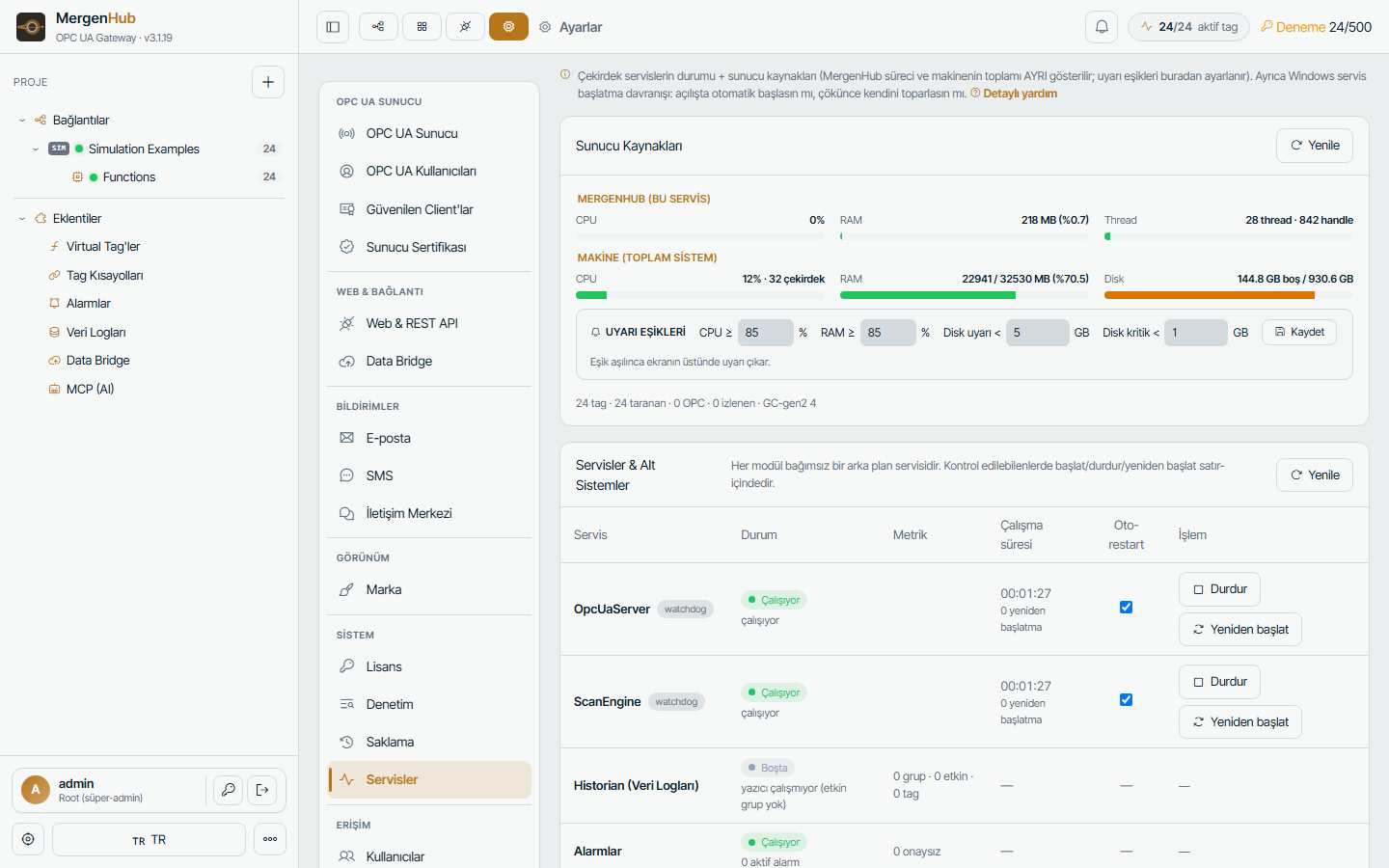
MergenHub is installed as three Windows services and a small system-tray manager. Services run in the background under the Local System account, start at boot and keep running when nobody is logged in — an operator PC, a server in a cabinet or a virtual machine all behave the same.
The three services
| SCM name | Display name | Process | What stops if it is down |
|---|---|---|---|
MergenHub | MergenHub Runtime (OPC UA + Config API) | MergenHub.exe | Everything: device scanning, OPC UA, web UI, REST API, alarms, SCADA |
MergenHubDataBridge | MergenHub Data Bridge | MergenHub.IoTGateway.exe | Outbound MQTT/REST agents and the Data Bridge REST server |
MergenHubHistorian | MergenHub Historian | MergenHub.Historian.exe | Writing tag history (values are still live; nothing is logged) |
The two auxiliary services depend on the core service (depend= MergenHub): Windows starts the core first, it writes an internal token, then the others connect to the core over the local REST API. Splitting them into processes means a failure in a cloud connector or a database driver can never take the OPC UA server down.
Startup and crash recovery
- All three services are set to Automatic start. On the installer's Service startup behaviour page you can switch to Automatic (delayed) or manual.
- Recovery is configured for each service: if the process crashes, Windows restarts it after the delay you chose (default a few seconds). Inside the core, every driver channel runs under a supervisor as well; a dead channel worker is recreated within seconds without restarting the service.
- The core also has a runtime restart that restarts the scan engine in-process (used by the trial window and by Settings › Services). It does not touch the Windows service.
Managing services
Settings › Services in the web UI shows each runtime service with start/stop/restart and the auto-restart switch. From an administrator prompt:
sc query MergenHub
sc stop  MergenHub
sc start MergenHub
sc qc    MergenHubHistorian
or with PowerShell: Get-Service MergenHub*, Restart-Service MergenHub.
The system-tray manager
MergenHub.Tray.exe is registered to start at logon for all users and sits next to the clock as MergenHub Administration.
- Shows the service state (green/yellow/red) and the trial countdown when unlicensed.
- Restart runtime — restarts the scan engine in-process (new trial window, reloads drivers) without stopping the Windows service.
- Start / Stop / Restart service — the Windows services (requires elevation).
- Open web UI, Open data folder, Event log, version and license summary.
The tray application is optional; the services run without it.
Running without a logged-in user
Nothing needs a desktop session. After a reboot the services start and devices are scanned before anyone signs in. Only the tray icon requires a user session.
Resource usage
Memory grows with the tag count: roughly 250–350 MB for a few thousand tags, 2–3 GB at 450K tags with many OPC UA subscribers. CPU is dominated by the drivers' scan rates. Settings › Services and the dashboard show CPU, RAM and disk of the machine; a capacity banner warns when RAM gets tight.
Service accounts and permissions
The services run as Local System by default and need write access to C:\ProgramData\MergenHub. If you switch them to a dedicated account (for example to reach a network share for ODBC logging), grant that account Modify on the data folder and Log on as a service.
Windows Event Viewer
Service start/stop and unhandled crashes are also written to Windows Logs › Application with source MergenHub. MergenHub's own detailed logs are described in Logs and diagnostics data.